15 Jul
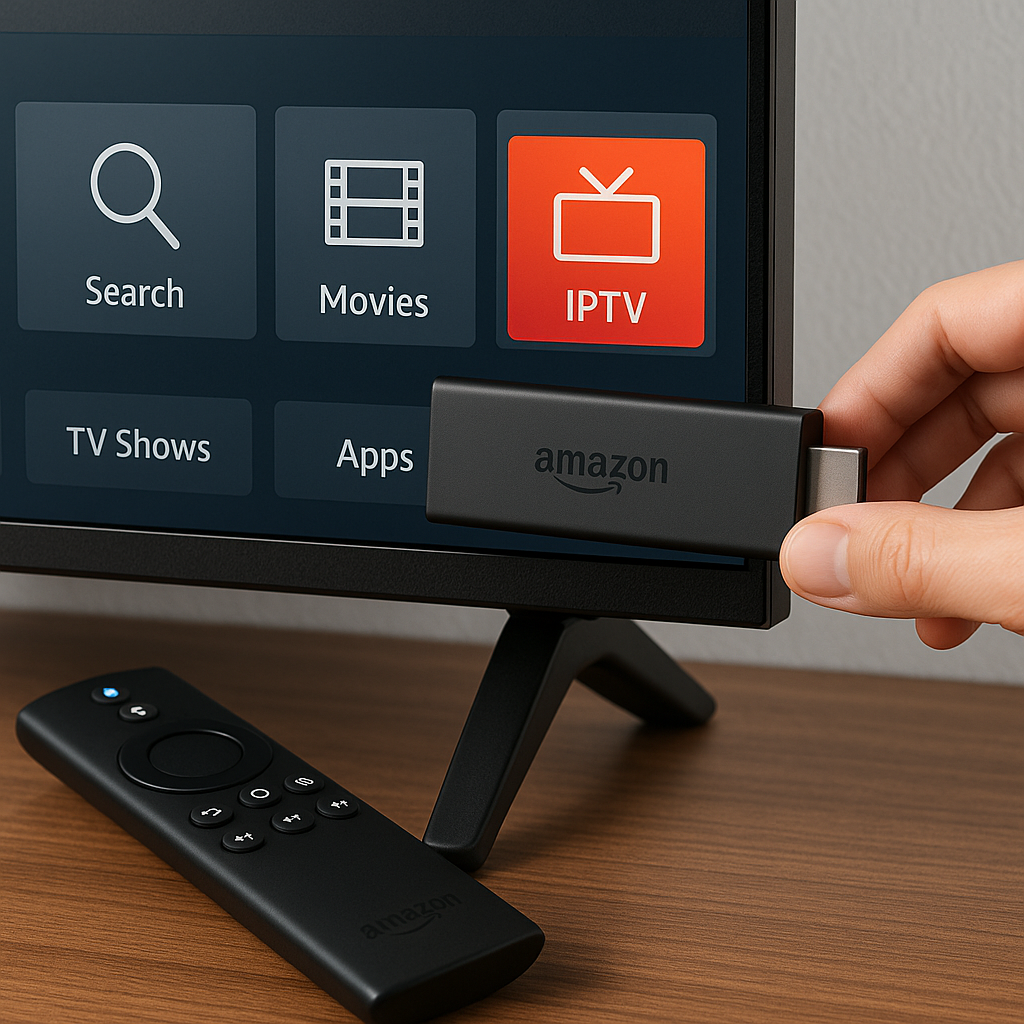
Firestick IPTV Installation is one of the simplest ways to bring flexible live telly, films, sport and catch-up style viewing to your main screen in the UK.
If you have an Amazon Fire TV Stick and want a calm, plain-English walkthrough, this guide will take you from the box in your hand to watching through Tiviprimes without making you feel like you need to be a tech expert.
A lot of viewers choose a Firestick because it is small, affordable and works well with everyday UK broadband from providers such as BT, Sky, Virgin Media, Vodafone, Plusnet, TalkTalk and EE. The good news is that, in most cases, the setup is much easier than people expect.
We will cover what you need, how to prepare your Firestick, how to install the right IPTV player, how to add your subscription details safely, and how to fix the most common issues. We will also explain the difference between IPTV, Freeview, Sky and apps like BBC iPlayer in a way that makes sense.
Before we begin, remember that IPTV should be used responsibly with legitimate services and content you are allowed to access. If you are brand new to the topic, it is worth reading this helpful UK beginner guide to IPTV alongside this walkthrough.
What Firestick IPTV Installation Means in 2026
Firestick IPTV Installation simply means setting up your Amazon Fire TV Stick so it can play TV channels and on-demand content delivered through the internet. Instead of using a rooftop aerial, a satellite dish or a traditional cable box, your programmes travel through your broadband connection.
For UK households, that can feel very familiar. You already use the internet for BBC iPlayer, ITVX, Netflix, Prime Video, YouTube and perhaps NOW. IPTV works in a similar broad sense, although the exact app and subscription details vary depending on the provider you choose.
On a Firestick, the process usually has three main parts:
- Connect the Firestick to your telly and Wi-Fi
- Install a suitable IPTV player app
- Add your IPTV subscription details
- Organise channels, favourites and settings
- Test playback, sound and picture quality
The aim is not to make your lounge more complicated. The aim is to make your viewing simpler, especially if you like live channels, international programmes, sport, films and box-set style content in one tidy place.
Before You Start: What You Need
Before you begin your Firestick IPTV Installation, gather everything in one place. This saves time and avoids that annoying moment where you are halfway through setup and suddenly need a password, remote or email you cannot find.
You will usually need:
- An Amazon Fire TV Stick or Fire TV device
- A telly with an HDMI port
- A stable UK broadband connection
- Your Wi-Fi name and password
- An Amazon account for the Firestick
- Your IPTV subscription details from Tiviprimes
- A few minutes of quiet setup time
Most modern Firesticks will work, including the Fire TV Stick Lite, standard Fire TV Stick, Fire TV Stick 4K and Fire TV Stick 4K Max. If you are buying a new one in 2026, the 4K models are worth considering even if your current telly is not 4K, because they tend to be quicker and more responsive.
If you are still comparing services, have a look at this IPTV buying guide for UK viewers before committing. A reliable service matters just as much as the device you use.
Is Firestick IPTV Legal in the UK?
The Firestick itself is completely legal. IPTV as a technology is also legal. BBC iPlayer, ITVX, Channel 4, My5, Sky Stream, NOW and many other services use internet-based streaming in some form. The key question is not whether IPTV exists, but whether the content provider has the correct rights to supply the channels or programmes you watch.
In plain English, you should only use IPTV services that operate responsibly and give you proper access information. Be cautious with unrealistic promises, especially if a service claims to offer every premium channel, every pay-per-view event and every film for a tiny one-off fee.
Good signs include:
- Clear subscription information
- Helpful customer support
- Transparent setup guidance
- Secure payment options
- Realistic service descriptions
- No pressure or suspicious claims
In most cases, everyday viewers simply want a dependable way to watch their favourite channels and entertainment without fuss. Staying with a trusted provider and using your account correctly is the sensible route.
Choosing the Best Firestick for IPTV
You can install IPTV on several Fire TV devices, but they are not all equal. Older Firesticks can still work, yet they may feel slow when opening apps, loading the TV guide or moving between channels. If you are planning a fresh Firestick IPTV Installation in 2026, the device you choose will affect the whole experience.
Here is a simple way to think about it:
- Fire TV Stick Lite: fine for basic HD viewing
- Fire TV Stick: a good everyday choice for many homes
- Fire TV Stick 4K: better for sharper screens and smoother use
- Fire TV Stick 4K Max: best for speed, Wi-Fi and heavy use
- Fire TV Cube: powerful, but more than many viewers need
If your family watches a lot of sport, films or live channels, the faster models are usually worth it. Premier League nights, big boxing events and busy weekend viewing can show up weaknesses in slow devices or weak Wi-Fi. A newer Firestick gives your IPTV app more room to breathe.
For a broader explanation of how IPTV works across devices, this plain-English IPTV explainer for the UK is a useful companion.
Step-by-Step Firestick IPTV Installation Walkthrough
This is the main setup section. Take your time and do one step at a time. If your screen looks slightly different, do not panic. Amazon updates the Fire TV menu now and then, so wording and menu positions can change a little.
- Plug in your Firestick. Insert the Firestick into an HDMI port on your telly. Connect the power cable to the plug, not just the TV USB port, because proper power helps performance.
- Select the correct HDMI input. Use your TV remote to choose the HDMI source where your Firestick is plugged in.
- Pair the Firestick remote. Follow the on-screen instructions. Usually, holding the Home button helps if the remote does not pair straight away.
- Connect to Wi-Fi. Choose your home network and enter your password carefully. A small typo is one of the most common setup hiccups.
- Sign in to Amazon. Use your Amazon account. You do not need a Prime subscription just to use the Firestick.
- Complete Amazon updates. Let the device update fully before installing IPTV apps. This can prevent problems later.
- Check the home screen. Once you can move around the Fire TV menu, you are ready for the IPTV app stage.
At this point, your Firestick is working as a streaming device. The next step is installing the app that will let you add your IPTV subscription details.
Preparing Firestick Settings for IPTV Apps
Some IPTV player apps are available directly from the Amazon Appstore, whilst others may need to be installed through a safe downloader method. The exact route depends on the app recommended with your Tiviprimes setup details.
To prepare your Firestick, you may need to allow app installation from a trusted source. On many Fire TV devices, this setting is called Install unknown apps. On some older versions, it may appear as Apps from Unknown Sources.
- Go to the Firestick home screen.
- Open Settings using the gear icon.
- Select My Fire TV.
- Choose Developer Options if it appears.
- If Developer Options is hidden, select About, highlight your Fire TV device name, and press the select button several times until the developer message appears.
- Return to My Fire TV and open Developer Options.
- Allow installation for the app you are using, such as Downloader, if required.
This sounds more technical than it is. You are not changing anything dangerous; you are simply giving the Firestick permission to install the IPTV player you need. Only install apps from sources you trust, and avoid random links from social media comments or unknown forums.
Installing an IPTV Player on Firestick
An IPTV player is the app that displays your channels, categories, TV guide and on-demand library. Think of it as the television set-top box interface, but inside your Firestick. Tiviprimes provides the service details, whilst the player gives you a place to enter them and watch.
Common IPTV player features include:
- Live TV channel lists
- Electronic programme guide, often called EPG
- Favourites for your regular channels
- Catch-up or on-demand sections where supported
- Parental control options
- Search and category filters
If the player is in the Amazon Appstore, search for it using the Firestick search tool, select it, and choose Download or Get. If you have been asked to use Downloader, install Downloader from the Amazon Appstore first, then carefully enter the official app address given in your setup instructions.
Do not rush this bit. Entering the wrong web address can lead to the wrong app, failed downloads or unnecessary security worries. If you are unsure whether you are using the right service or player, this smart UK IPTV subscription guide explains what to look for before you sign in.
Adding Your Tiviprimes Subscription Details
Once the IPTV player is installed, you need to add your subscription details. These details are normally provided after you subscribe and may include a username, password and server address, or an M3U link, depending on the app being used.
In most cases, the process looks like this:
- Open the IPTV player app on your Firestick.
- Choose Add User, Add Playlist, Login with Xtream Codes, or similar.
- Enter the username exactly as provided.
- Enter the password exactly as provided.
- Enter the server URL or playlist link carefully.
- Give the profile a simple name, such as Tiviprimes.
- Select Add, Login or Connect.
- Wait for channels, films and the TV guide to load.
Details are case-sensitive, which means capital letters, dots, slashes and symbols matter. If you are using the Firestick remote, it is easy to press the wrong character, so go slowly. Some viewers prefer using the Fire TV mobile app as a keyboard because typing is much quicker on a phone.
If the app says the login failed, do not keep trying endlessly. Check your details once, restart the app, and contact support if needed. It is usually a simple typing mistake or a subscription detail that needs checking.
Setting Up the TV Guide, Favourites and Categories
After your Firestick IPTV Installation is complete, spend a little time organising the app. This makes everyday watching much more enjoyable. A lot of viewers skip this step, then later feel the channel list is too busy.
Start with favourites. Add the channels your household actually watches, such as BBC One, ITV1, Channel 4, Sky News, kids channels, sports channels, film channels or international favourites. Your favourites section becomes your quick-access remote control.
Useful things to organise include:
- Favourite UK entertainment channels
- Sports channels for football, cricket, rugby and boxing
- Film and series categories
- Children’s channels and parental controls
- International channels by country or language
- News channels for quick morning viewing
If the TV guide does not appear instantly, give it a few minutes. EPG data can take time to load, especially on the first setup. Restarting the app after the first full load can also help. Once organised, your Firestick should feel more like a familiar TV service and less like a long list of channels.
Firestick IPTV Installation vs Freeview, Sky and Apps
It is helpful to compare Firestick IPTV Installation with the services UK viewers already know. IPTV is not automatically better than everything else; it is different. The best choice depends on what you watch, how many rooms you use, your broadband quality and your budget.
IPTV vs Freeview: Freeview is simple and free after you have the right aerial and licence, but channel choice is limited and reception varies by area. IPTV offers more flexibility and often more categories, but it needs strong broadband.
IPTV vs Sky or Virgin: Traditional pay-TV packages can be polished and familiar, with strong customer service and official sports packages. IPTV can be more flexible and device-friendly, but you should choose carefully and avoid unrealistic offers.
IPTV vs BBC iPlayer and ITVX: Catch-up apps are excellent for UK broadcaster content, but they do not replace a full live channel experience for everyone. IPTV can sit alongside these apps rather than replacing them entirely.
Many homes use a mixture:
- Freeview for basic channels
- BBC iPlayer for catch-up
- Netflix or Prime Video for films and series
- IPTV for broader live channel choice
- Firestick as the device that brings it together
If you are still weighing up whether IPTV suits your household, the Tiviprimes beginner guide to IPTV explains the basics without jargon.
Best Internet Settings for Firestick IPTV in the UK
Your broadband connection is the foundation of IPTV. If the internet is unstable, even the best Firestick and subscription can struggle. The good news is that most UK fibre connections are more than capable of streaming IPTV when the Wi-Fi signal is strong.
As a rough guide, aim for:
- 10 Mbps or more for standard HD viewing
- 25 Mbps or more for 4K streams
- Low congestion during evening peak times
- A strong Wi-Fi signal near the telly
- Unlimited data if you watch a lot
Speed is not the only thing that matters. Stability matters too. A connection that jumps between fast and slow can cause buffering, freezing or audio delay. If your router is in the hallway and your Firestick is behind a thick wall in the lounge, the signal may be weaker than you think.
Try placing your router higher, away from metal objects, baby monitors and thick furniture. If you use Virgin Media, BT Smart Hub, Sky Broadband Hub, EE Smart Router or similar, check whether your router offers both 2.4 GHz and 5 GHz Wi-Fi. The 5 GHz band can be faster over short distances, whilst 2.4 GHz can travel further through walls.
How to Reduce Buffering on Firestick IPTV
Buffering is the most common frustration with IPTV, but it is not always caused by the IPTV service. In many cases, it is a Wi-Fi, device storage, app cache or broadband congestion issue. Work through fixes calmly before assuming the worst.
- Restart your Firestick. Go to Settings, My Fire TV, Restart. This clears small glitches.
- Restart your router. Turn it off for around 30 seconds, then switch it back on and wait fully.
- Move closer to the router. If possible, test the Firestick in the same room as the router.
- Clear app cache. Go to Settings, Applications, Manage Installed Applications, choose the IPTV app, then Clear Cache.
- Close unused apps. Firesticks have limited memory, so remove apps you never use.
- Use an Ethernet adapter. A wired connection can be more stable than Wi-Fi.
- Test another stream. If only one channel buffers, it may be a channel-specific issue.
Evening viewing, especially during football, can put pressure on home broadband. If several people are gaming, downloading and streaming at the same time, your Firestick may not get a smooth connection. A simple family agreement to pause large downloads during live sport can make a real difference.
Picture, Sound and Remote Settings to Check
Once channels load, check the basics. A small settings change can make the difference between an average experience and one that feels properly comfortable on the sofa.
Look at these Firestick settings:
- Display resolution: set to Auto or match your TV
- Dynamic range: choose adaptive settings if colours look odd
- Audio output: check Dolby settings if sound is missing
- App permissions: allow only what is needed
- Remote batteries: replace them if navigation feels delayed
- TV picture mode: Sport, Cinema or Standard can change the look
If sport looks blurry, try a different picture mode on your telly and make sure your broadband is not struggling. If voices are out of sync, restart the stream first, then restart the app. If the app feels sluggish, uninstall unused Firestick apps and keep at least some storage free.
For homes where people watch late at night, Bluetooth headphones can be paired with the Firestick. That is handy if someone wants to watch a film or match without waking the rest of the house.
Common Mistakes to Avoid
Most Firestick IPTV Installation problems come from small, avoidable mistakes. None of these mean you have done anything silly; they are simply common because the Firestick remote and menus can be fiddly.
- Typing details too quickly: one wrong character can stop login working.
- Using weak Wi-Fi: the Firestick may show connected but still struggle.
- Ignoring updates: old Fire OS versions can cause app issues.
- Installing random apps: only use trusted sources and instructions.
- Filling storage: a nearly full Firestick often feels slow.
- Expecting IPTV to fix bad broadband: streaming needs a steady connection.
- Not organising favourites: this makes daily viewing harder than it needs to be.
Another mistake is choosing solely on price. A very cheap IPTV offer may look tempting, but support, stability and proper guidance matter. This is exactly why the UK IPTV buying guide is worth reading before you make a decision.
Keeping Your Firestick IPTV Setup Safe
Safety is mostly about common sense. Your Firestick is connected to your home network, so treat it like any other internet device. Do not install unknown files from random sources, do not share your subscription login publicly, and do not give remote access to someone you do not trust.
Good habits include:
- Use strong passwords for important accounts
- Keep your Amazon account secure
- Install apps only from trusted instructions
- Delete apps you no longer use
- Keep Fire OS updated
- Be wary of social media sellers with no support
Some viewers ask about VPNs. A VPN can add privacy, but it can also slow your connection if you choose a poor server. If you use one, choose a reputable provider with UK-friendly speeds and test whether it improves or worsens your streaming. In most cases, the biggest improvement comes from better Wi-Fi, not from adding more tools.
Using Firestick IPTV Around the Home
Many UK households have more than one telly: lounge, bedroom, kitchen, children’s room or perhaps a garden office. Firesticks are popular because they are easy to move and cheaper than buying multiple boxes.
Before using IPTV on several devices, check your subscription terms. Some plans allow one connection at a time, whilst others may allow more. If two people try to watch on separate devices when the plan only allows one, playback may stop or the account may be restricted.
For multi-room viewing, think about:
- How many people watch at once
- Whether the upstairs Wi-Fi is strong enough
- Whether each Firestick has enough storage
- Parental controls for children’s rooms
- Simple favourites for less confident users
If your bedroom Firestick buffers but the lounge one works perfectly, the issue is probably Wi-Fi coverage rather than the IPTV service. Mesh Wi-Fi systems from brands like Eero, TP-Link, Google Nest and Netgear can help larger UK homes, especially older properties with thick walls.
Troubleshooting Firestick IPTV Login and Loading Issues
If your IPTV app opens but does not load channels, take a steady approach. Most issues can be narrowed down quickly. Do not delete everything immediately unless support asks you to, because you may remove useful settings.
- Check that your Firestick is connected to the internet by opening another app, such as YouTube or BBC iPlayer.
- Confirm your subscription is active and not expired.
- Re-enter your username, password and server address carefully.
- Restart the IPTV app.
- Restart the Firestick.
- Clear the IPTV app cache, not the data, unless you are ready to log in again.
- Try another Wi-Fi network, such as a phone hotspot, for a short test.
- Contact Tiviprimes support with a clear description of the error message.
Useful information to provide includes the app name, Firestick model, your broadband provider, whether other apps work, and the exact message on screen. The clearer the information, the quicker support can guide you.
When to Upgrade Your Firestick or Broadband
Sometimes the problem is not the installation. It is simply old equipment. A Firestick that has been used for years, filled with apps and left low on storage may struggle with modern streaming apps. Likewise, an old router may not handle busy households well.
Consider upgrading your Firestick if:
- Menus lag even after restarting
- Apps crash regularly
- Storage is constantly full
- Wi-Fi signal is weak compared with other devices
- You want smoother 4K viewing
Consider reviewing broadband if:
- Your speed drops heavily in the evening
- Several rooms have poor Wi-Fi
- Video calls and streaming struggle together
- Your router is many years old
- You are still on a very slow package
A newer Firestick is often a cheaper upgrade than a new TV. It can make an older telly feel fresh again and is ideal for viewers who want modern streaming without changing the whole living room setup.
FAQ
Can I install IPTV on any Firestick in the UK?
In most cases, yes. Most Amazon Fire TV Stick models can run IPTV player apps, although newer models are faster and smoother. If your Firestick is very old, low on storage or slow in normal apps, upgrading to a 4K or 4K Max model may give a better experience.
Do I need an Amazon Prime subscription for Firestick IPTV Installation?
No. You need an Amazon account to set up the Firestick, but you do not need to pay for Amazon Prime just to install and use an IPTV player. Prime Video is separate from your Firestick’s basic streaming functions.
Why is my IPTV buffering on Firestick?
Buffering is usually caused by weak Wi-Fi, busy broadband, low Firestick storage, app cache problems or a temporary channel issue. Restart the Firestick and router, clear the app cache, test other apps, and consider using Ethernet if your Wi-Fi is unreliable.
Is Firestick IPTV better than Freeview?
It depends on what you want. Freeview is simple and works well where aerial reception is strong, but channel choice is limited. IPTV can offer more flexibility and wider viewing options, but it relies on stable broadband and a trustworthy provider.
Where can I learn more before subscribing?
If you are still researching, start with the UK IPTV beginner guide and then read the IPTV buying guide for 2026. They will help you understand the basics, compare options and choose more confidently.
Final Thoughts
A complete Firestick IPTV Installation does not have to be stressful. With a suitable Firestick, stable UK broadband, the right IPTV player and accurate subscription details, most viewers can be up and running without technical knowledge. Take your time, keep your setup tidy, avoid random apps, and organise favourites so your everyday telly feels simple. If you want friendly guidance and a premium IPTV experience built around real viewers, Tiviprimes is here to help you get started calmly and confidently.