28 Aug
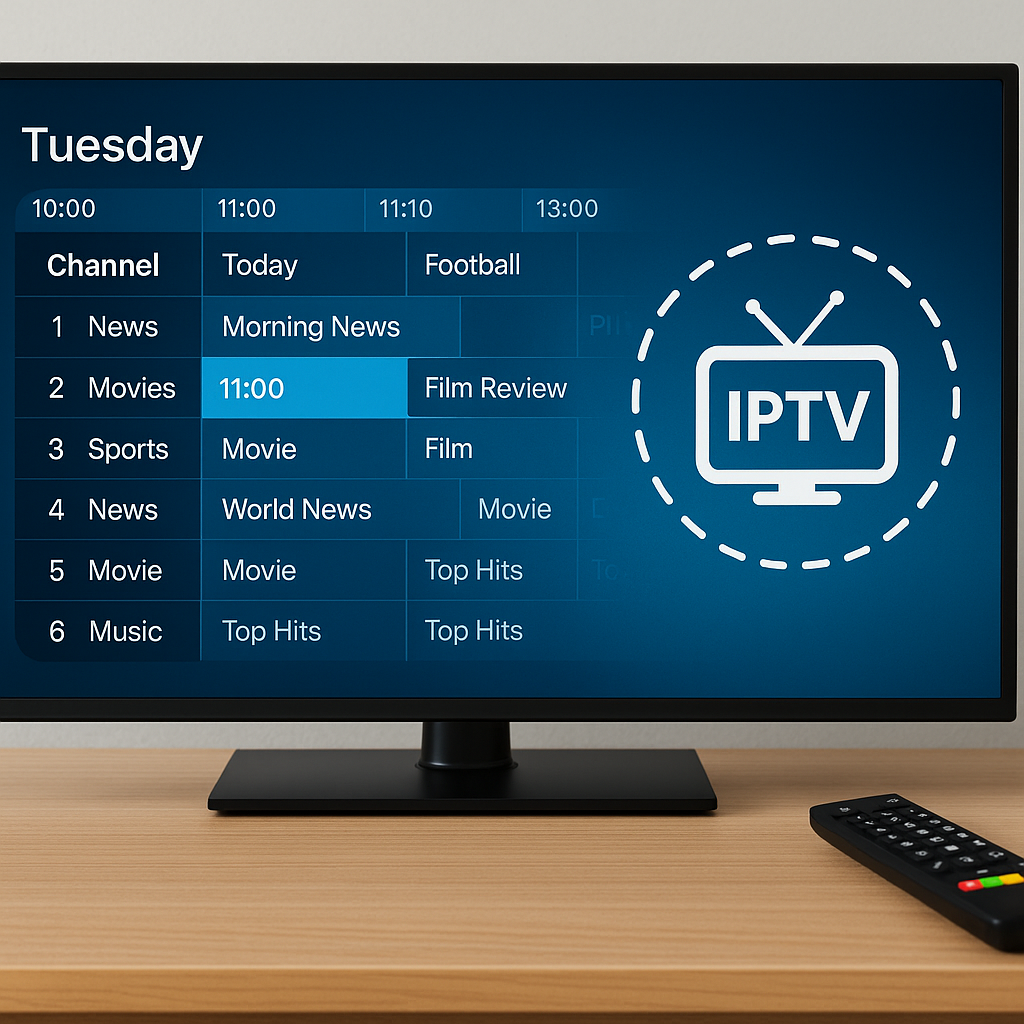
A working TV guide EPG can make the difference between IPTV feeling confusing and IPTV feeling just like normal telly. With Tiviprimes, a lot of viewers want the same simple thing: open the app, see what is on BBC One, ITV, Sky Sports or their favourite film channel, then press play without guessing.
The good news is that, in most cases, a blank or incorrect guide is not a disaster. It usually means the app needs the right EPG source, a refresh, a time-zone adjustment, or a cleaner match between channel names and guide data.
This guide explains how to get a working TV guide EPG on any IPTV app in plain English. You do not need to be a techie, and you do not need to understand every file type behind the scenes.
We will cover Firestick, Android TV boxes, Smart TVs, IPTV Smarters Pro, TiviMate, and other popular players used by UK households. By the end, you will know what to check, what to ask your IPTV provider for, and how to fix the most common EPG problems calmly.
What Is a TV Guide EPG and Why Does It Matter?
EPG stands for Electronic Programme Guide. In everyday terms, it is the on-screen TV guide that shows what is currently playing and what is coming next. If you have used Freeview, Sky, Virgin Media, BT TV or BBC iPlayer, you already know the idea. It helps you browse channels by time, spot live sport, plan a film night, or see when the next episode of a programme starts.
On IPTV apps, the EPG is usually separate from the live channel stream. Your channel list tells the app what channels exist. The EPG tells the app what programmes are on those channels. When both parts work together, your IPTV app feels organised and familiar. When the guide is missing, you may still be able to watch channels, but you are left opening them one by one to find out what is showing.
A good EPG is especially useful for UK viewers because viewing habits are varied. One household may switch between BBC News, ITV dramas, Premier League coverage, kids channels, documentaries and international channels in a single evening. A working guide keeps all of that tidy.
- It shows now and next programme information.
- It helps you browse channels faster.
- It makes live sport easier to find.
- It supports reminders and catch-up in some apps.
- It makes IPTV feel more like familiar UK telly.
If you are still learning the basics, our plain English guide to what IPTV means for UK viewers explains how live TV streaming works before you start changing settings.
Why Your EPG Is Blank, Wrong, or Not Loading
A blank EPG can feel frustrating, but the cause is often simple. IPTV apps do not magically create programme listings. They need guide data from a source, often supplied by your IPTV service or linked through a separate XMLTV file. If that source is missing, expired, blocked, typed incorrectly, or not matched to the channels, the app may show empty rows.
Sometimes the channels play perfectly but the guide says no information. Other times, the EPG loads for some channels but not others. You may also see programme times that are one hour out, which is common around British Summer Time changes if the app or guide source is set to the wrong time zone.
Here are the most common reasons a working TV guide EPG fails:
- The EPG URL has been typed incorrectly.
- The provider has not supplied EPG data.
- The app has not refreshed the guide yet.
- The channel names do not match the guide names.
- The device date or time zone is wrong.
- The app cache contains old guide data.
- Your broadband connection dropped during update.
In most cases, you should not keep reinstalling the app again and again. Reinstalling can help occasionally, but it is usually better to check the EPG source, refresh the data, and confirm that your playlist and guide are linked properly.
What You Need Before Setting Up a Working TV Guide EPG
Before changing settings, gather the basic details. This saves time and prevents small typing mistakes. Your IPTV provider may offer login details in different formats. Some use Xtream Codes style login, which includes a server URL, username and password. Others use an M3U playlist URL plus a separate EPG URL. Both can work, but the app setup will look slightly different.
If you use Tiviprimes, keep your welcome details handy and follow the format recommended for your chosen app. The exact wording varies between apps, but you are generally looking for playlist, portal, server, EPG, TV guide or XMLTV settings.
Before you begin, check you have:
- Your IPTV username and password, if supplied.
- Your server or portal URL, if supplied.
- Your M3U playlist URL, if using playlist login.
- Your EPG or XMLTV URL, if supplied separately.
- A stable broadband connection.
- The correct device date, time and UK time zone.
It also helps to know your device. A Fire TV Stick, Android box and Samsung Smart TV can all run IPTV apps, but their menus and storage limits differ. If you are choosing a device or wondering whether your current one is suitable, the comparison of Android Box vs Firestick vs Smart TV for IPTV is a useful next read.
EPG URL vs M3U Playlist: The Simple Difference
Many EPG problems happen because viewers mix up the playlist and the guide. They sound technical, but the difference is straightforward. Think of the M3U playlist as the channel list. It tells your app which live channels are available and where the streams are. Think of the EPG URL as the TV magazine. It tells your app what is on those channels today, tomorrow and later in the week.
Some IPTV apps and services combine these details automatically when you log in with Xtream Codes. In that case, you might not need to paste a separate EPG URL at all. The guide can be pulled in from the same account details. With an M3U setup, however, you often need to add the EPG link separately.
Here is the simple comparison:
- M3U playlist: provides the channel streams.
- EPG or XMLTV URL: provides programme listings.
- Xtream Codes login: may provide both together.
- App settings: decide how often the guide updates.
- Channel matching: connects listings to the right channels.
If you are using playlist links and want a clearer explanation of how they work, read our guide to IPTV playlists and M3U files in the UK. It breaks down the wording without overwhelming you with jargon.
Best IPTV Apps for a Working TV Guide EPG
Most well-known IPTV apps can show an EPG, but some make it much easier than others. A lot of UK Firestick owners like apps that feel close to a normal TV box guide, with channel groups on the left and programme rows across the screen. Others prefer a simple mobile-style layout with categories and search.
TiviMate is popular on Android TV and Firestick because its guide layout is clean, quick and comfortable on a remote control. IPTV Smarters Pro is widely used because it supports many login formats and works across several device types. Other apps may work well too, but the exact EPG menu names can vary.
When choosing an IPTV app for EPG use, look for:
- Support for Xtream Codes or M3U plus EPG URL.
- A manual EPG refresh option.
- Time offset or guide shift settings.
- Channel grouping and favourites.
- Search, catch-up and reminders if needed.
- Good performance on your device.
If you mainly watch on Amazon Firestick, you may find our list of top rated streaming apps for UK Firestick owners helpful when deciding which player feels easiest for the whole family.
Step-by-Step: Add a Working TV Guide EPG to Any IPTV App
The exact buttons change from app to app, but the process is usually similar. Take your time and enter links carefully. A single missing letter or extra space can stop the EPG loading. If possible, use copy and paste rather than typing long URLs with a remote control.
- Open your IPTV app. Go to settings, playlist, user account, portal, or TV guide depending on the app.
- Add your IPTV account. Use Xtream Codes login, M3U playlist, or the method provided by your IPTV service.
- Find the EPG section. Look for labels such as EPG, TV guide, XMLTV, guide source, or programme guide.
- Enter the EPG URL. Paste the exact link if your provider has supplied a separate one. Avoid adding extra spaces at the start or end.
- Choose update settings. Set the app to refresh the EPG automatically, ideally once a day or when the app starts.
- Refresh manually once. Use update, reload, refresh EPG, or sync guide to pull in the latest listings.
- Wait for the download. Large guides can take several minutes, especially on older Firesticks or slower Wi-Fi.
- Check several categories. Test UK entertainment, sport, films, kids and news channels rather than only one channel.
If nothing appears after a few minutes, do not panic. Restart the app and check again. If it is still blank, verify the EPG URL, check your internet connection, and confirm with your provider that guide data is active for your account.
For Firestick users who are still installing their first IPTV app, the Firestick IPTV installation guide for UK viewers walks through the broader setup before you add the TV guide.
How to Set the EPG Time Offset Correctly in the UK
One of the most common EPG complaints is not that the guide is blank, but that it is one hour early or one hour late. This often happens because of time zone settings, British Summer Time, or a guide source using a different time reference. The channels may be correct, but the programmes appear in the wrong slot.
Start with the device itself. On a Firestick, Android box, Smart TV or tablet, make sure the date, time and time zone are set automatically, or set them to the UK manually. Then check your IPTV app for an EPG offset, time shift, guide shift or time correction option.
Use this simple process:
- Check the real time. Compare the device clock with your phone or BBC time.
- Open app EPG settings. Look for offset, time shift or programme guide time.
- Adjust by one hour. If programmes are late, try minus one hour. If they are early, try plus one hour.
- Refresh the EPG. Some apps need a reload before changes show.
- Test BBC One or ITV. Choose a familiar UK channel with easy-to-check scheduling.
During clock changes in spring and autumn, it is normal for some guide sources to behave oddly for a short time. In most cases, a refresh and time offset check will settle it. If only one channel is wrong whilst others are correct, the issue is more likely the channel mapping than your time zone.
Fix Missing Channel Logos, Groups and Programme Names
A working TV guide EPG is not only about times. Logos, groups and programme titles make the app feel tidy. Missing logos will not usually stop playback, but they can make browsing slower. The cause is often a mismatch between how a channel is named in the playlist and how it is named in the EPG source.
For example, one source may call a channel BBC One HD, whilst another calls it BBC 1 HD UK. The app may not always know these are the same. Better IPTV apps can match channels automatically, but sometimes you need to assign EPG entries manually or refresh the playlist.
Try these fixes:
- Refresh both the playlist and EPG.
- Enable automatic channel matching if available.
- Check whether the channel group is hidden.
- Clear old logos or app cache if images are stuck.
- Update to the latest version of your IPTV app.
- Ask your provider if updated logos are available.
In apps such as TiviMate, you may be able to long-press a channel and assign an EPG listing manually. This is handy when only a few favourite channels are missing guide data. For a deeper app-specific walkthrough, see our TiviMate setup and configuration guide for the UK.
Device Tips for Firestick, Android Box and Smart TV Users
Your device can affect how quickly the EPG loads and how smoothly it scrolls. A large IPTV guide can contain thousands of channels and several days of programme information. That is a lot for a small streaming stick or older Smart TV to store and display. If the app feels slow only when opening the guide, storage or memory may be the reason.
Firestick users should keep some free storage available. Delete apps you never use, restart the stick occasionally, and avoid running too many background apps. Android box users should check for firmware updates and use a reliable launcher or app version. Smart TV users may find that native TV apps are convenient but less flexible than Android-based players.
Good device habits include:
- Restart your device once or twice a week.
- Keep at least 1GB of free storage where possible.
- Use 5GHz Wi-Fi or Ethernet for steadier updates.
- Clear cache only when needed, not every hour.
- Keep the IPTV app updated.
- Avoid very old devices for huge channel lists.
If you watch a lot of live football, films or weekend family telly, a responsive guide is worth the effort. Viewers following fixtures may also enjoy our guide to watching live football online in the UK, which explains practical streaming considerations for match days.
Broadband and Router Checks When the EPG Will Not Update
An EPG download is not usually as demanding as streaming a live HD channel, but it still needs a stable connection. If your broadband drops halfway through the update, the guide may load partly or not at all. This is more likely on weak Wi-Fi, busy home networks, or older routers tucked behind the telly.
UK households commonly use BT, Sky Broadband, Virgin Media, TalkTalk, Vodafone, Plusnet or EE. Any of these can work well for IPTV, but Wi-Fi conditions inside the home matter. Thick walls, distance from the router, baby monitors, neighbouring networks and busy evenings can all affect reliability.
Try these practical checks:
- Run a speed test near the streaming device.
- Restart your router if it has been on for weeks.
- Move the Firestick or box away from the back of the TV using an HDMI extender.
- Use Ethernet where possible, especially on Android boxes.
- Switch to 5GHz Wi-Fi if the router is nearby.
- Refresh the EPG outside peak evening hours.
If your live channels buffer as well as your EPG failing to update, it may be a broader network issue. The guide on router settings that improve IPTV streaming quality is a useful companion, and our article on why IPTV keeps buffering in the UK covers common fixes in more detail.
Common Mistakes to Avoid
When viewers are frustrated, it is easy to change lots of settings at once. The problem is that this makes it harder to know what actually fixed or broke the guide. A calmer approach works better. Change one thing, refresh, test, then move on.
Here are the mistakes we see most often:
- Typing long URLs by hand. One wrong character can break the EPG. Copy and paste where possible.
- Confusing playlist and EPG links. The M3U link is not always the guide link.
- Refreshing too quickly. Some apps need several minutes to import large guide files.
- Ignoring the device clock. Wrong time settings can make a good guide look broken.
- Clearing data unnecessarily. This can remove playlists, favourites and settings.
- Using too many apps at once. Test one reliable app before blaming the service.
- Hiding channel groups. The guide may exist, but the category is not visible.
Another common mistake is assuming all IPTV services offer the same guide quality. They do not. When choosing a subscription, the reliability of the EPG, support, device compatibility and update frequency are just as important as the size of the channel list. Our IPTV buying guide for UK viewers explains what to look for before subscribing.
Working TV Guide EPG vs Catch-Up TV: What Is the Difference?
A working TV guide EPG and catch-up TV are related, but they are not the same. The EPG shows programme information. Catch-up allows you to watch a programme after it has aired, if the service and channel support it. You can have a guide without catch-up, and in some apps you can have catch-up icons only on selected channels.
For example, the guide may show that a drama was on ITV at 9pm yesterday. Catch-up, if available, may let you open that programme and watch it later. On services such as BBC iPlayer and ITVX, catch-up is built into the broadcaster app. In IPTV apps, catch-up support depends on the provider, channel and app features.
Here is a quick comparison:
- EPG: tells you what is on and when.
- Catch-up: lets you replay past programmes where supported.
- EPG issue: often fixed by guide URL, refresh or time offset.
- Catch-up issue: may depend on provider recording support.
- Best experience: a reliable EPG plus catch-up on favourite channels.
If you are comparing IPTV with more traditional options, our streaming vs satellite vs cable UK guide gives a helpful overview of how modern viewing choices differ.
Final Thoughts
A working TV guide EPG makes IPTV easier, calmer and far more enjoyable. Instead of guessing what is on, you can browse live channels in a familiar way, plan your evening, find sport quickly and keep family viewing organised. In most cases, EPG problems come down to a missing guide URL, a refresh issue, a time offset, channel matching, or a device connection problem. Work through the steps slowly, check one setting at a time, and you will usually find the cause without stress. If you want a premium IPTV experience built for everyday UK viewers, Tiviprimes is here to help you enjoy smooth streaming, clear setup guidance and a more comfortable way to watch your favourite telly.
FAQ
Why is my IPTV guide saying no information?
Your app may not have loaded an EPG source, or the guide source may not be linked to your playlist correctly. First, refresh the EPG manually. Then check that your EPG URL is correct, your device is online, and your app has not hidden the channel group. If you use Xtream Codes login, log out and back in only after trying a normal guide refresh.
Do I need a separate EPG URL for every IPTV app?
Not always. If your IPTV app uses Xtream Codes login, the TV guide may load automatically from your account. If you use an M3U playlist, you may need to enter a separate XMLTV or EPG URL. The same EPG URL can often be used in more than one compatible app, but your provider can confirm the correct format.
Why is my EPG one hour wrong in the UK?
This is usually a time zone or British Summer Time issue. Check your Firestick, Android box or Smart TV is set to UK time, then look in your IPTV app for EPG offset, time shift or guide correction. Adjust by plus or minus one hour, refresh the guide, and test with a familiar channel such as BBC One or ITV.
Which IPTV app has the best TV guide?
Many UK viewers like TiviMate for its clean grid-style guide on Firestick and Android TV devices. IPTV Smarters Pro is also popular because it is flexible and works on several platforms. The best choice depends on your device, login method and how simple you want the layout to feel for everyday use.
Will clearing cache fix a blank EPG?
Clearing cache can help if old or damaged guide data is stuck, but it should not be your first step every time. Try a manual EPG refresh, check the guide URL, confirm your internet connection, and review time settings first. Avoid clearing app data unless you are happy to re-enter your playlist and login details.