22 Jul
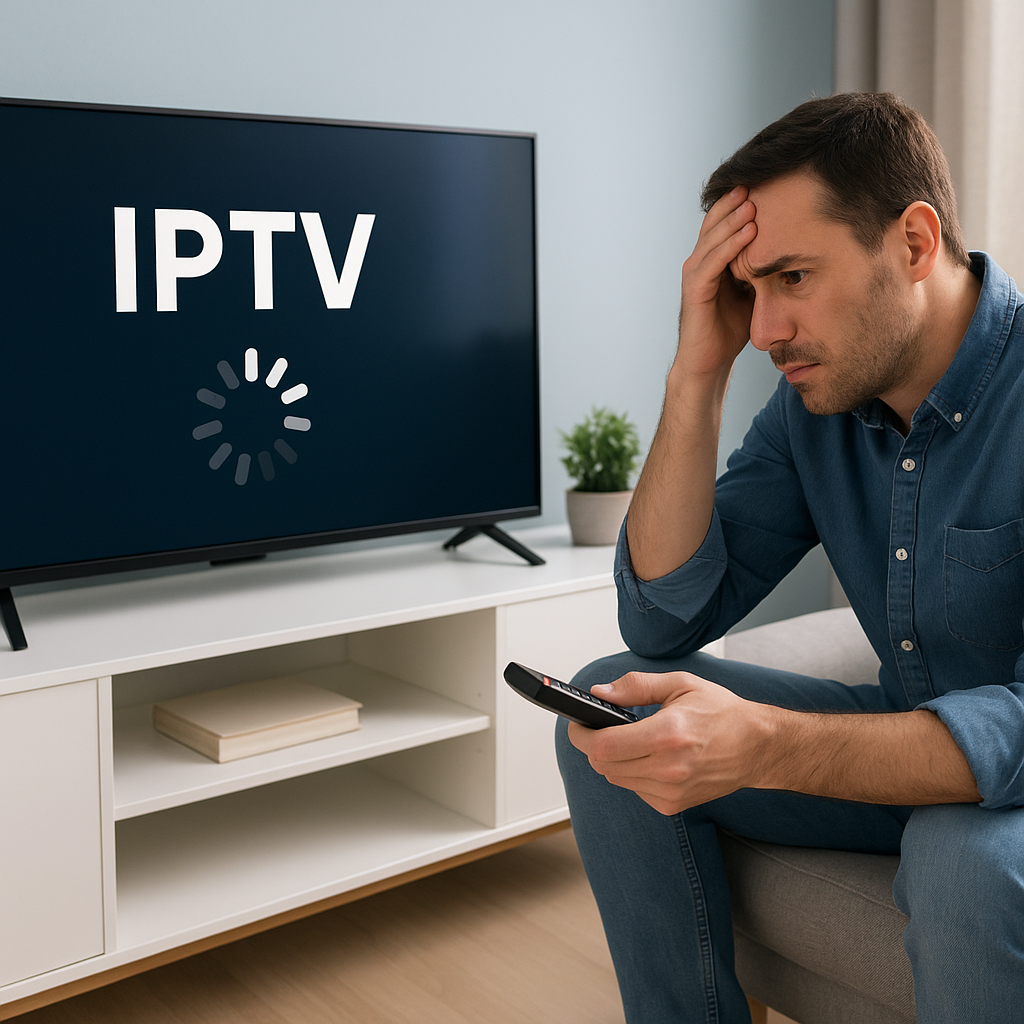
IPTV keeps buffering at the exact moment you are settling in for the match, a film night, or a quiet half-hour with your favourite series, and it can make the whole experience feel frustrating.
At Tiviprimes, we know most UK viewers simply want their telly to work without fuss. You should not need to be a network engineer to enjoy smooth channels, catch-up, films and sport.
The good news is that buffering is usually fixable. In most cases, the cause is not one big mystery, but a handful of everyday issues: weak Wi-Fi, an overloaded device, poor app settings, an unstable broadband line, or a provider that cannot cope at busy times.
This guide explains why your IPTV keeps buffering, how to test the real cause, and what you can do to stop it for good. We will keep things practical, friendly and UK-focused, with examples for Firestick, Smart TVs, Android boxes, Virgin Media, BT, Sky Broadband, TalkTalk, Plusnet and other common home setups.
By the end, you will have a clear action plan for smoother streaming, whether you watch live UK channels, Premier League fixtures, BBC iPlayer, ITV, films, international channels, or weekend box sets on the main telly.
Why Your IPTV Keeps Buffering in the UK
When IPTV keeps buffering, it means the video is not arriving quickly or consistently enough for your device to play it smoothly. Your app pauses, spins, freezes, drops quality, or jumps back into life after a few seconds. Sometimes it happens once in an evening. Sometimes it happens every few minutes, which is when it starts to ruin the whole point of switching on.
For UK households, the most common reasons are surprisingly ordinary. A Firestick may be tucked behind the TV with weak Wi-Fi. A Smart TV may be running an old app version. Your broadband may be fast on paper but unstable in the room where you watch. Or your IPTV service may be overloaded during popular events, especially football, boxing, big film releases and weekend evenings.
A lot of viewers assume they need the fastest broadband package available. Speed matters, but stability matters even more. A steady 50 Mbps connection can often feel better than a 300 Mbps connection that drops every few minutes. IPTV streaming needs a clean, continuous flow, not just a flashy speed test result taken beside the router.
If you are new to internet-based television, it may help to read this simple explainer first: what IPTV means for UK viewers. Once you understand how the stream reaches your screen, the fixes in this guide will make much more sense.
- Buffering is usually caused by connection instability.
- Wi-Fi distance and interference are very common problems.
- Older devices may struggle with modern streams.
- Peak-time demand can expose weak IPTV providers.
- Simple settings changes can make a big difference.
How IPTV Buffering Actually Works
IPTV works by sending small parts of a video stream to your device over the internet. Your app stores a little bit of video ahead of what you are watching. This small stored section is called the buffer. When everything is working well, the buffer stays topped up and you never notice it. When the stream arrives too slowly, the app runs out of stored video and has to pause whilst it waits for more data.
Think of it like filling a glass whilst drinking from it. If the tap fills the glass faster than you drink, you are fine. If the tap slows down or splutters, the glass empties. Buffering is your IPTV app waiting for the glass to fill again.
This can happen on live TV, video on demand, sports channels, catch-up content and even standard-definition streams. It is not only a 4K problem. However, higher quality streams do need more data, so 4K sport and HD movie channels are more likely to show weaknesses in your setup.
Unlike Freeview, where the signal comes through an aerial, IPTV depends on your home internet, router, Wi-Fi, device, app, and provider servers all working together. If any part of that chain struggles, you may see buffering.
That is why the best approach is not to randomly change everything. It is better to work through the chain calmly, starting with the easiest checks and moving towards bigger upgrades only if needed.
Quick Checks Before You Change Anything
Before buying new equipment or blaming your broadband provider, do a few quick checks. These take minutes and often reveal the cause straight away. The aim is to find out whether the issue affects every app, every channel, or only one IPTV stream.
- Try BBC iPlayer, ITVX, YouTube or Netflix on the same device.
- Check whether buffering happens on all IPTV channels or just one.
- Restart your router and leave it for five minutes.
- Restart your Firestick, Smart TV or Android box.
- Close unused apps running in the background.
- Test the same channel on a different device if possible.
If everything buffers, including mainstream apps such as iPlayer or YouTube, your home connection or device is likely the problem. If only one IPTV channel buffers, it may be that specific channel source. If all IPTV channels buffer but other apps work perfectly, your IPTV app settings or provider may need attention.
It is also worth checking whether the problem happens at the same time each day. Evening buffering, especially between 7 pm and 10 pm, can point towards household congestion, Wi-Fi interference, or a provider struggling under peak demand. Weekend sport can be another clue, because many viewers tune in at once.
Do not skip the restart. It sounds basic, but routers and streaming devices can build up little glitches over days or weeks. A clean restart clears temporary memory, refreshes network connections, and gives your device a better chance of playing smoothly.
Broadband Speed and Stability for IPTV Keeps Buffering
If IPTV keeps buffering even after a restart, your broadband connection is the next place to look. In the UK, many homes now have fibre or part-fibre broadband, but the quality still varies by area, property type, router placement and provider. Virgin Media, BT, Sky, TalkTalk, Vodafone, Plusnet and EE all offer packages that can work well for IPTV, but the package name alone does not guarantee a perfect experience in every room.
For one IPTV stream, sensible minimum speeds are usually around these levels:
- 10 Mbps for standard definition.
- 20 Mbps for reliable HD viewing.
- 35 Mbps or more for 4K content.
- Extra speed if other people are gaming or streaming.
- More headroom for busy family households.
However, do not focus only on the download speed. You also want low packet loss, stable latency and a connection that does not dip sharply. A speed test can show 100 Mbps one minute and still be poor for IPTV if the signal keeps dropping. Run a few tests at different times, especially in the room where you watch telly, not just next to the router.
If you want a simple readiness check, the IPTV requirements checklist for UK homes is a helpful companion. It covers the basics you need before expecting IPTV to behave well, including internet, devices and apps.
In most cases, IPTV does not need a business-level connection. It needs consistency. If your broadband cuts out during video calls, struggles when the kids are gaming, or slows down badly in the evening, those same issues can appear as IPTV buffering.
Contact your broadband provider if your speed is far below what you pay for. Ask them to check the line, router, signal levels and local faults. If you are on an older copper-heavy connection and your area offers full fibre, upgrading may be worthwhile, especially if your household streams on several devices at once.
Wi-Fi Problems That Make IPTV Keeps Buffering Worse
Wi-Fi is one of the biggest reasons IPTV keeps buffering in UK homes. Your broadband may be perfectly fine at the front of the house, but your telly may be in the lounge, extension, loft room, bedroom or converted garage where the wireless signal is weak. Thick brick walls, foil-backed insulation, mirrors, baby monitors, cordless phones and neighbouring networks can all interfere.
Firesticks are especially vulnerable because they often sit behind the TV, where the television itself can block signal. Smart TVs can also have weaker Wi-Fi chips than phones and laptops. So, if your mobile looks fast in the same room, your telly device may still struggle.
Try these Wi-Fi improvements before spending money:
- Move the router into a more central, open position.
- Keep it away from the floor, cupboards and metal objects.
- Use the 5 GHz band if you are close to the router.
- Use the 2.4 GHz band if you are farther away.
- Disconnect old devices you no longer use.
- Reboot the router weekly if it becomes sluggish.
If your router is far from the TV, consider a mesh Wi-Fi system or a wired connection. Mesh systems are popular in UK homes because they spread coverage more evenly than a single router. They can be especially helpful in Victorian terraces, townhouses and larger properties where one router struggles to reach every room.
The best fix, where practical, is Ethernet. A wired cable from the router to your streaming device is usually more stable than Wi-Fi. If you cannot run a long cable, powerline adapters can work in many homes, although performance depends on the quality and layout of your electrical wiring.
For a Firestick, you can use an Ethernet adapter. For many Android boxes and some Smart TVs, Ethernet is already built in. If buffering disappears when wired, you have found the cause: your Wi-Fi, not your IPTV subscription.
Device and App Fixes: Firestick, Smart TV and Android Box
Your streaming device plays a huge role in IPTV performance. A lot of viewers use Amazon Fire TV Sticks because they are affordable, simple and widely available in the UK. Others use Samsung or LG Smart TVs, Android TV boxes, Nvidia Shield, Chromecast with Google TV, iPads, phones or laptops. All can work, but older or overloaded devices may buffer even on good broadband.
Common device issues include low storage, too many background apps, overheating, outdated software and weak Wi-Fi hardware. If your Firestick is several years old and full of unused apps, it may struggle with HD or 4K IPTV streams.
Try these device fixes:
- Delete apps you no longer use.
- Clear the cache in your IPTV app.
- Update your device software.
- Update the IPTV player app.
- Restart the device before big live events.
- Use the original power adapter where possible.
On a Firestick, avoid powering it from the TV USB port if the device behaves oddly. The wall plug usually provides steadier power. Also try using the HDMI extender included with some Firestick models, as it moves the stick slightly away from the back of the TV and can improve Wi-Fi reception.
If you use a Firestick and want a careful setup guide, this Firestick IPTV installation guide for UK viewers walks through the process in a beginner-friendly way. A clean installation can prevent many app and configuration problems.
Smart TVs are convenient, but they are not always the strongest choice for IPTV. Some older TV operating systems become slow, receive fewer updates, or have limited app support. If your Smart TV app buffers but the same service works well on a modern Firestick or Android box, the TV hardware may be the weak link.
Provider, Server and Channel Issues
Sometimes the problem is not your home at all. IPTV depends on provider servers, channel sources and routing. If a provider has poor infrastructure, overcrowded servers or weak support, viewers may experience buffering no matter how good their broadband is. This is especially noticeable during high-demand events, when thousands of people may try to watch the same channel at the same time.
A good IPTV provider should offer stable servers, sensible channel organisation, responsive support and clear setup instructions. It should not leave you guessing. If you are constantly switching channels to find one that works, or support keeps blaming your internet without helping you test properly, it may be time to reconsider.
Signs of provider-side buffering include:
- Only IPTV buffers whilst other streaming apps are fine.
- Several viewers report the same channel issue.
- Buffering starts during major sports events.
- Some channels work perfectly but others always struggle.
- The same issue happens on different devices and networks.
When choosing a service, avoid judging only by the lowest price or the longest channel list. A huge list is not useful if the channels freeze when you actually want them. Look for reliability, support, device guidance and sensible expectations. The IPTV buying guide for UK subscribers explains how to subscribe more carefully and avoid common traps.
It is also important to use IPTV responsibly and choose legitimate, reputable services. UK viewers are increasingly aware that not all streaming sources are equal. A reliable setup starts with a trustworthy provider and a realistic understanding of what is being offered.
Busy Evenings, Football Matches and Peak-Time Buffering
Peak time is when hidden problems show up. Your IPTV may seem fine on a Tuesday afternoon, then buffer constantly during a Saturday evening Premier League match. This can happen because your home network is busier, your broadband area is under more demand, or the IPTV provider has too many viewers on the same stream.
In many UK homes, several things happen at once in the evening. Someone is watching Netflix upstairs, another person is gaming, phones are updating, laptops are syncing, smart speakers are active, and the main telly is trying to stream live sport. Each device takes a slice of your connection, and some activities are more demanding than they look.
To reduce peak-time buffering, try to prepare before the event starts. Restart your device, close unused apps, switch to Ethernet if possible, and ask others to pause large downloads. If you have router controls, you may be able to prioritise the streaming device. Some modern routers call this Quality of Service or device priority.
Live sport is less forgiving than on-demand viewing. A film can quietly buffer ahead, but live TV has less room to build a cushion because it is happening in real time. This is why a connection that handles catch-up content may still stutter during live football or boxing.
If peak-time buffering affects only one provider and happens repeatedly during the same events, keep notes. Record the date, time, channel, device and whether other apps worked. This information helps support teams identify whether the issue is local, channel-specific or server-related.
Step-by-Step Plan to Stop IPTV Buffering for Good
When IPTV keeps buffering, the best approach is a calm step-by-step test. Do not change ten things at once, because then you will not know what actually fixed it. Work through the list below in order, testing after each change.
- Restart everything. Turn off your IPTV device and router. Wait 30 seconds, turn the router on first, then restart the streaming device once the internet is back.
- Test another app. Open BBC iPlayer, ITVX, YouTube or Netflix on the same device. If those apps buffer too, focus on broadband, Wi-Fi or the device.
- Check another IPTV channel. If only one channel buffers, the issue may be with that channel source rather than your setup.
- Run a speed test near the telly. Use the same room and time of day when buffering usually happens. Look for big speed drops, not just the headline number.
- Improve Wi-Fi or try Ethernet. Move the router, use a mesh node, try a powerline adapter, or connect directly with a cable.
- Clean up the device. Delete unused apps, clear cache, update software and make sure the device is not overheating.
- Adjust app settings. Try a different player option if your app offers one, reduce stream quality for testing, or refresh the playlist.
- Contact support with details. Share your device, broadband provider, speed test results, channel name, time of issue and what you have already tried.
This process may sound simple, but it prevents guesswork. In most cases, you will identify the weak point within 20 to 30 minutes. If buffering improves after moving closer to the router, it is Wi-Fi. If it improves after clearing cache, it is device maintenance. If it only happens on one channel during a big match, it may be provider-side or channel-source related.
Keep your setup tidy once it is working. Update apps monthly, restart the router occasionally, and avoid filling your streaming device with unnecessary apps. IPTV is much smoother when the basics are kept clean.
IPTV Buffering vs Freeview, Satellite and Cable
Many UK viewers compare IPTV with Freeview, Sky satellite, Virgin Media cable and app-based streaming. Each option has strengths and weaknesses. IPTV can offer flexibility, broad channel access and viewing across different devices, but it relies heavily on your internet connection. Freeview relies on aerial reception. Satellite depends on dish alignment and weather conditions. Cable depends on provider infrastructure and local availability.
If IPTV keeps buffering, it can feel less reliable than traditional TV, but that is not always a fair comparison. A badly positioned aerial can break up during poor weather. A satellite dish can lose signal in heavy rain. Cable boxes can have outages too. The difference is that IPTV issues are often inside the home network, which means you have more ways to improve them.
Here is a simple comparison:
- IPTV: flexible, internet-based, device-friendly, but needs stable broadband.
- Freeview: no monthly broadband dependency, but limited by aerial coverage.
- Satellite: strong channel familiarity, but needs dish installation and clear signal.
- Cable: convenient bundles, but availability and pricing vary by postcode.
- Streaming apps: easy to use, but subscriptions can add up quickly.
For a broader look at these choices, see the UK streaming vs satellite vs cable guide. It is useful if you are deciding whether IPTV should replace, support or sit alongside your existing TV setup.
The key point is balance. IPTV can be excellent when set up properly, but it should not be treated like a magic box that ignores broadband, Wi-Fi and device quality. Give it the right conditions and the experience becomes much more dependable.
Common Mistakes to Avoid
When viewers try to fix IPTV buffering, they often make changes that feel logical but do not solve the real problem. Avoiding these mistakes can save money, time and a fair bit of irritation.
- Only chasing higher speeds. Upgrading from 100 Mbps to 500 Mbps will not fix weak Wi-Fi behind the telly.
- Ignoring the device. An old Firestick or slow Smart TV app can buffer even on excellent broadband.
- Testing beside the router only. You need to test where you actually watch, not where the signal is strongest.
- Keeping too many apps open. Background apps can drain memory and make streams unstable.
- Blaming every issue on the provider. Sometimes the provider is at fault, but home setup problems are very common.
- Buying the cheapest subscription blindly. Low price means little if servers cannot handle evening demand.
Another mistake is constantly changing IPTV apps without understanding the cause. A better app can help, but if your Wi-Fi signal is poor, every app will eventually struggle. Similarly, using a VPN can sometimes help with routing or privacy, but it can also slow streams if the VPN server is overloaded or far away. If you use one, test with and without it to see what actually works better.
Do not overlook overheating. Streaming devices placed behind warm TVs, inside cabinets or near radiators can throttle performance. If the device feels very hot, move it into open air and give it a restart.
Finally, be careful with unofficial tweaks you find online. Random settings, unknown APK files and overcomplicated router changes can create more problems than they solve. Stick to sensible, reversible steps first.
When to Upgrade Your Setup
Sometimes small fixes are enough. Other times, your setup is simply due an upgrade. This does not mean you need to spend a fortune, but one well-chosen improvement can transform the experience.
Consider upgrading if your IPTV keeps buffering after you have tried restarts, app updates, cache clearing, Wi-Fi improvements and support checks. Also consider it if your device is more than four or five years old, your router is supplied on an old broadband package, or your home has known Wi-Fi dead zones.
Useful upgrades include:
- A newer Firestick, Android TV box or streaming device.
- A mesh Wi-Fi system for larger or older UK homes.
- An Ethernet adapter for Firestick or compatible devices.
- Powerline adapters if running cable is awkward.
- A full-fibre broadband package if available in your area.
- A better-supported IPTV service with stable servers.
Before upgrading broadband, check whether your current problem is actually Wi-Fi. Many people pay for faster internet but leave the router in the same poor position, so the telly room still struggles. If possible, test your IPTV device with Ethernet first. If wired streaming is smooth, invest in better home networking before changing broadband packages.
If you are choosing a new IPTV service or reviewing whether your current one is right for you, revisit the buying advice mentioned earlier and compare support, reliability and setup guidance, not just the number of channels. A service that helps you get set up properly is often better value than one with a huge list and no practical help.
For households that rely on IPTV as their main way to watch telly, it is worth treating the setup like any other home entertainment system. A stable router, good device and sensible provider choice are the foundations. Once those are in place, everyday viewing becomes far more relaxing.
Final Thoughts: If your IPTV keeps buffering, do not panic and do not assume you need to start again. The good news is that most buffering has a clear cause and a practical fix. Start with the simple checks, improve Wi-Fi where needed, keep your device clean, and choose a provider that takes reliability seriously. If you want a smoother, more reassuring IPTV experience for UK viewing, Tiviprimes is here to help you enjoy your favourite channels, films and sport with less fuss.
FAQ
Why does my IPTV keep buffering even though my internet is fast?
Fast internet does not always mean stable internet. IPTV needs a steady stream of data, so weak Wi-Fi, packet loss, router issues, device problems or an overloaded IPTV server can still cause buffering. Test speed in the room where you watch, try Ethernet if possible, and check whether other apps buffer on the same device.
What broadband speed do I need for IPTV in the UK?
As a rough guide, allow at least 10 Mbps for standard definition, 20 Mbps for HD and 35 Mbps or more for 4K. Add extra headroom if other people in your home are gaming, downloading or watching streaming apps at the same time. Stability is just as important as the headline speed.
Is a Firestick good for IPTV or does it cause buffering?
A Firestick can be very good for IPTV when it is set up properly. Buffering is more likely if the Firestick is old, low on storage, overheating, using weak Wi-Fi or running outdated apps. Clear cache, remove unused apps, use the wall power adapter and consider an Ethernet adapter for better stability.
Can my IPTV provider be the reason for buffering?
Yes. If other apps work well and your home connection is stable, the provider may be the issue, especially if buffering happens during popular live events or only on certain channels. Good providers invest in stable servers and offer helpful support when something goes wrong.
Will using Ethernet stop IPTV buffering?
Ethernet often helps because it removes many Wi-Fi problems, such as interference, weak signal and distance from the router. It will not fix every issue, especially provider-side problems, but it is one of the best tests. If IPTV works smoothly on Ethernet, your Wi-Fi setup is probably the main cause.