12 Aug
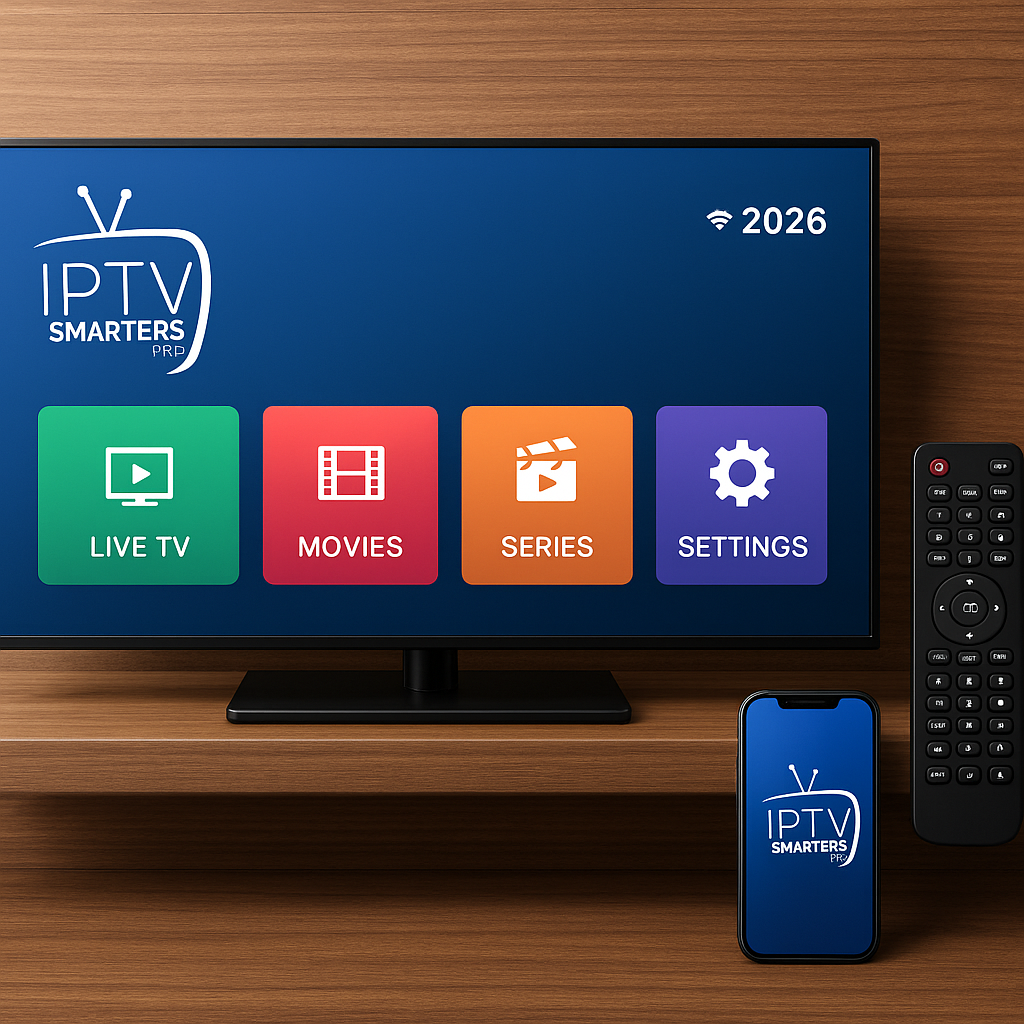
IPTV Smarters Pro Setup Guide help is exactly what many UK viewers need when they want their favourite live channels, films, series and sport to feel simple rather than technical. With Tiviprimes, the aim is to make IPTV feel familiar, reliable and easy to enjoy on the devices you already use at home.
If you have ever set up BBC iPlayer, ITVX, Netflix or Prime Video, the good news is that IPTV Smarters Pro is not as scary as it may first look. It is simply an app that lets you sign in with the details from your IPTV provider, organise your channels, browse an electronic programme guide and watch telly over your broadband connection.
A lot of viewers in the UK are moving between Freeview, Sky, cable, streaming apps and IPTV, often using a Fire TV Stick in the lounge and a smart TV or tablet elsewhere in the house. This guide is written for everyday viewers, not techies, so you can follow it calmly from start to finish.
We will cover what IPTV Smarters Pro does, what you need before installation, how to set it up, which settings matter, how to reduce buffering, and the common mistakes to avoid. In most cases, a smooth setup comes down to three things: the right login details, a stable internet connection and sensible app settings.
By the end, you should know how to install IPTV Smarters Pro on popular UK devices, sign in using your Tiviprimes details, tidy up your channels and make the app easier for the whole household to use.
What IPTV Smarters Pro Does for UK Viewers
IPTV Smarters Pro is a media player app. That means it does not create channels by itself and it does not replace your provider. Instead, it gives you a neat screen where your IPTV subscription can be displayed, searched and played.
Think of it like a TV remote control and programme guide rolled into one app. Your IPTV service supplies the login details and channel access, whilst IPTV Smarters Pro provides the interface. When everything is set up correctly, you can move between live TV, video on demand, series, catch-up where available and favourites without digging through awkward menus.
For UK households, the appeal is usually convenience. A family might have Freeview in the kitchen, Sky or Virgin Media in the living room, and IPTV on a Firestick upstairs. Others prefer IPTV because it can bring together live channels, international options, sport and entertainment in one app. If you are still getting to grips with the basics, our plain-English guide to what IPTV means for UK viewers is a helpful place to start.
IPTV Smarters Pro is popular because it supports several useful features:
- Live TV categories for quicker browsing
- Electronic programme guide, often called EPG
- Catch-up TV where your provider includes it
- Films and series sections
- Multiple profiles for different users
- Parental controls for family homes
- External player support on some devices
It is worth remembering that IPTV Smarters Pro is only one part of the experience. Your broadband, Wi-Fi strength, router position, device performance and IPTV subscription quality all play a part. If one of those areas is weak, the app may still open, but streams might load slowly, freeze or feel less reliable than they should.
IPTV Smarters Pro Setup Checklist Before You Start
Before you install the app, it helps to get a few things ready. This avoids the classic moment where you are sitting on the sofa, remote in hand, only to realise your password is in an email on another device or your Wi-Fi is too weak in the room where you want to watch.
For a smooth IPTV Smarters Pro setup, prepare the following:
- Your Tiviprimes username
- Your Tiviprimes password
- The portal or server URL supplied with your subscription
- A stable UK broadband connection
- Your device remote or keyboard app
- Enough device storage for the app
- Access to your email or customer account
Most UK homes using BT, EE, Sky Broadband, Virgin Media, TalkTalk, Plusnet or Vodafone broadband can run IPTV perfectly well, provided the connection is stable. Speed matters, but stability matters just as much. A fast connection that drops every few minutes will feel worse than a slightly slower one that stays steady.
If you want to check the broader picture before subscribing or setting up a new device, read the IPTV requirements checklist for UK homes. It covers the practical basics, such as device choice, internet speed and what to prepare before you pay for a service.
As a general guide, aim for these speeds:
- 10 Mbps for standard definition viewing
- 20 Mbps for reliable HD viewing
- 30 Mbps or more for Full HD and busy homes
- 50 Mbps or more if several people stream at once
- Faster speeds for 4K, gaming and large households
Do not panic if your speed test is not perfect. In most cases, you can improve performance by moving closer to the router, using the 5GHz Wi-Fi band, restarting your router, using an Ethernet adapter, or reducing other heavy downloads while watching.
Choosing the Right Device in the UK
IPTV Smarters Pro can work on a range of devices, but the experience is not identical on all of them. The right choice depends on where you watch, how confident you are with apps, and whether you prefer a TV remote, touch screen or keyboard.
In the UK, the most common options are Amazon Fire TV devices, Android TV boxes, Android TV sets, smart TVs, tablets and mobiles. Some viewers also use Windows or Mac computers, although most people prefer watching on the main telly.
If you are still deciding what to buy, our comparison of Android Box vs Firestick vs Smart TV for IPTV explains the pros and cons in more detail. For many households, a Fire TV Stick 4K or an Android TV device is the most practical balance of price, speed and ease.
Fire TV Stick and Fire TV Cube
Amazon Fire TV devices are extremely popular in the UK because they are affordable, easy to plug in and already familiar to many viewers. If you use Prime Video, BBC iPlayer, ITVX, Channel 4 or Netflix on a Firestick, adding IPTV Smarters Pro feels like a natural extension.
Fire TV devices are especially useful if your smart TV is older or slow. Instead of replacing the whole telly, you can plug a Firestick into an HDMI port and use that as your streaming hub.
Fire TV is a good choice if you want:
- A simple remote control experience
- Affordable hardware
- Easy movement between streaming apps
- Good performance on 4K models
- A portable device for another room
Depending on app availability at the time you install, you may need to use the Downloader app to install IPTV Smarters Pro. If Firestick is your main device, follow our detailed Firestick IPTV installation guide for UK users alongside this article.
Android Boxes and Android TV
Android TV boxes and Google TV devices are also excellent for IPTV Smarters Pro. They often give you more flexibility than some smart TVs and can be faster than older built-in TV software.
Popular options include Android TV boxes, Nvidia Shield TV, Xiaomi TV boxes, Chromecast with Google TV and newer televisions with Android TV or Google TV built in. The exact menus vary, but the setup idea is similar: install the app, enter your login details, allow it to load channels, and adjust the settings.
Android boxes suit viewers who want:
- More app flexibility
- Better performance on higher-end models
- Ethernet ports on some devices
- Expandable storage on selected boxes
- A more customisable IPTV setup
Cheap no-name Android boxes can be tempting, but they are not always the best value. They may have poor Wi-Fi, outdated software or weak remotes. For IPTV, a reliable mid-range device is usually better than the cheapest option available online.
Smart TVs, Tablets and Mobiles
Some Samsung and LG smart TVs support IPTV player apps, although availability can change. If IPTV Smarters Pro is not available on your TV app store, you may find that a Firestick or Android TV device gives a smoother and less frustrating experience.
Tablets and mobiles are useful for watching in bed, in the kitchen or when someone else is using the main TV. However, for regular family viewing, a proper TV device is usually more comfortable. Small screens are handy, but a remote control and full-size telly still feel better for football, films and evening viewing.
Smart TVs, tablets and mobiles are best when you want:
- Occasional viewing in another room
- A backup device
- Simple app store installation
- Touch screen navigation
- Viewing without extra boxes or cables
If you are comparing IPTV with your existing Freeview, Sky, Virgin Media or cable setup, our streaming vs satellite vs cable UK guide gives a useful overview of how modern viewing choices differ.
How to Set Up IPTV Smarters Pro in the UK
Now let us walk through the main setup process. The exact screen names can vary slightly between devices, but the broad steps are the same. Take your time and enter your details carefully. Most failed logins come from a small typing error, especially when using a TV remote.
Before starting, keep your Tiviprimes login email open on your phone. This makes it much easier to copy the server URL, username and password accurately.
- Install IPTV Smarters Pro. On supported devices, search for the app in the app store. On Fire TV devices, you may need to install it using Downloader if it is not available directly. Only use trusted sources and avoid random files from unknown websites.
- Open the app. Launch IPTV Smarters Pro and accept the terms if prompted. You may be asked whether you are using a TV or mobile layout.
- Choose login with Xtream Codes API. This is usually the easiest method for Tiviprimes users because it uses a username, password and server URL.
- Enter a profile name. You can call it Tiviprimes, Lounge TV, Family TV or anything that helps you recognise it.
- Type your username. Enter it exactly as supplied, including any numbers or capital letters.
- Type your password. Be careful with similar characters such as zero and the letter O, or one and the letter I.
- Enter the server URL. Include the full portal address exactly as provided by Tiviprimes, with no extra spaces at the beginning or end.
- Press Add User or Login. The app should then connect to the server and begin loading live TV, films, series and EPG data.
- Allow time for first loading. On the first setup, categories and programme data may take a few moments to populate.
- Test a few channels. Try a UK entertainment channel, a film channel and a sports channel if included in your package. This confirms that the account, app and connection are working.
If the app says login failed, do not immediately assume the service is down. In most cases, the issue is a typo, missing character, extra space, wrong login method or expired subscription. Re-enter the details slowly, preferably using a phone remote app or Bluetooth keyboard if your device supports one.
Once you are logged in, the app may ask to download the latest data. Let it finish. If you press buttons too quickly during the first load, the app can feel as though it has frozen, when it is actually still organising channel categories in the background.
For live sport, especially Premier League weekends, Champions League nights, boxing events or busy Saturday afternoons, it is wise to test your setup before the match starts. Our guide to watching live football online in the UK explains why early testing, good Wi-Fi and device preparation make such a difference.
Adding Channels, EPG and Favourites
After your first login, IPTV Smarters Pro may look busy. You might see live TV, films, series, catch-up, recently added content and many categories. That is normal. The trick is to organise the parts you use most so you are not scrolling endlessly every evening.
The EPG, or electronic programme guide, is the TV guide inside the app. It shows what is on now and what is coming next. When the EPG is working well, IPTV feels much more like a traditional TV experience, similar to Freeview or Sky. If it has not loaded immediately, give it a little time, then look for a refresh or update option inside the app settings.
Useful first steps include:
- Open the live TV section
- Browse your UK channel categories
- Test several channels at different times
- Mark favourite channels for quick access
- Refresh the EPG if listings look empty
- Remove or hide categories you never use if your app version allows it
Favourites are especially helpful for family homes. You might add BBC channels, ITV, Channel 4, Sky Sports-style sports categories where included, film channels, kids channels and your most-watched entertainment options. This makes the app far easier for children, parents or guests who do not want to search through every category.
Many viewers like to create a simple routine. Open IPTV Smarters Pro, go straight to favourites, choose the channel, and watch. That is much calmer than treating the app like a giant list every time.
If catch-up is available with your package, you may see a separate catch-up icon or catch-up labels beside certain channels. Not every channel includes catch-up, and availability depends on your provider and subscription. When it is available, it can be handy for programmes you missed earlier in the day.
Video on demand and series sections work more like familiar streaming apps. You browse categories, choose a title and press play. If artwork or descriptions load slowly, that can be due to internet speed, app cache or server load. It does not always mean something is broken.
Best Settings and Buffering Fixes for UK Broadband
Buffering is the issue most viewers worry about, but the good news is that many problems can be improved with a few sensible changes. IPTV Smarters Pro depends on your home network, so your Wi-Fi, router and device position matter just as much as the app itself.
Start with the basics. Restart your router, restart your streaming device and close other heavy apps. If someone is downloading large games on an Xbox or PlayStation, backing up photos, or streaming 4K video in another room, your IPTV stream may have less bandwidth available.
Try these practical settings and habits:
- Use 5GHz Wi-Fi when close to the router
- Use Ethernet where possible for the main TV
- Reduce VPN use unless you genuinely need it
- Clear the IPTV Smarters Pro cache occasionally
- Keep your streaming device updated
- Restart the app before major live events
- Avoid running too many background apps
If your router is hidden behind the telly, under a cabinet or beside thick walls, move it into a more open position. Small changes can have a surprisingly big effect. Wi-Fi signals do not enjoy metal cabinets, microwave ovens, thick brick walls or being tucked behind lots of other electronics.
For a deeper look at home network improvements, read our guide to router settings that improve IPTV streaming quality. It explains channels, bands, router placement and simple changes that can make streams feel more stable.
Data use is another common question. IPTV uses your broadband data in the same way Netflix, YouTube, BBC iPlayer and ITVX do. If you have unlimited home broadband, this is usually not a concern. If you are using mobile data, tethering or a capped plan, it matters more. Our article on how much internet data streaming TV uses in the UK gives a helpful breakdown by quality level.
As a rough guide, higher quality streams use more data and need more stable speed. If your connection struggles, choosing a lower quality version of a channel, where available, can reduce freezing. Some users prefer Full HD for sport and HD or SD for background viewing, especially if the household is busy online.
If you still see freezing, check whether it happens on every channel or just one. If one channel buffers but others are fine, the issue may be with that specific stream. If every channel buffers, look at your broadband, Wi-Fi, device or app settings first. Our detailed guide to why IPTV keeps buffering and UK fixes is useful if you want a more complete troubleshooting checklist.
Common Mistakes to Avoid
Most IPTV Smarters Pro setup problems are not dramatic. They are usually small mistakes that are easy to fix once you know where to look. Here are the ones we see most often with UK viewers.
- Typing login details incorrectly. A single wrong character in the username, password or server URL can stop the app from logging in.
- Using the wrong login method. If your provider gives Xtream Codes details, choose that option rather than trying to load a playlist manually.
- Leaving extra spaces. Spaces before or after the server URL are easy to miss when copying and pasting.
- Installing from risky sources. Random download links can create security and performance problems. Use trusted app stores or reliable installation instructions.
- Blaming the app for Wi-Fi issues. If your signal is weak, even the best IPTV app will struggle.
- Ignoring device storage. A full Firestick or old smart TV can become slow, crash or fail to update properly.
- Testing only during big matches. Set up and test before major football, boxing or live events, not five minutes before kick-off.
Another mistake is buying an IPTV subscription based only on price. Very cheap services can look attractive, but reliability, support, channel organisation and clear setup instructions matter more in everyday use. If you want to compare options sensibly, our IPTV buying guide for UK viewers explains what to check before subscribing.
It is also wise not to overload one device. Firesticks and smart TVs are convenient, but they can slow down if filled with unused apps. Delete apps you no longer need, clear cache from time to time and restart the device occasionally. It is a bit like giving your phone a tidy-up.
Finally, avoid changing too many things at once when troubleshooting. If you alter the router, app settings, VPN, device and login all at the same time, you will not know what fixed the issue. Change one thing, test, then move on.
IPTV Smarters Pro vs Other IPTV Apps
IPTV Smarters Pro is not the only IPTV player available, but it remains a favourite because it is fairly easy to understand, supports popular login methods and works across many devices. That said, different apps suit different viewers.
Compared with simpler IPTV players, IPTV Smarters Pro often feels more complete. It usually gives you live TV, EPG, films, series, catch-up and multiple user support in one place. For a family living room, that all-in-one layout can be reassuring.
Compared with more advanced apps, it may feel less customisable in some areas. Some power users prefer apps that offer deeper layout control, more playlist tools or advanced player settings. But for everyday UK households, too many options can become confusing. IPTV Smarters Pro sits in a comfortable middle ground.
Here is a simple comparison:
- IPTV Smarters Pro: Good all-rounder, friendly layout, strong for families
- Basic IPTV players: Simple, but may lack guide, favourites or catch-up features
- Advanced IPTV apps: More control, but often less beginner-friendly
- Provider-branded apps: Convenient, but may work only with one service
- Smart TV-only apps: Handy, but sometimes slower on older TVs
If you like a familiar TV-style layout, IPTV Smarters Pro is a sensible place to start. If later you decide you want a different interface, your Tiviprimes subscription details may work with other compatible apps, depending on the supported login method. Always check with support before changing apps if you are unsure.
The bigger question is not only which app you use, but whether your whole setup is balanced. A good app on poor Wi-Fi will still struggle. A premium subscription on an outdated device may feel slower than it should. The best results usually come from matching a reliable provider, a capable device and a stable home network.
FAQ
Is IPTV Smarters Pro free to use in the UK?
IPTV Smarters Pro may be free to install on some devices, although versions, branding and availability can change. The app itself is only a player. To watch channels, films or series, you still need valid IPTV subscription details from a provider such as Tiviprimes.
Which login option should Tiviprimes users choose?
In most cases, Tiviprimes users should choose the Xtream Codes API login option. This normally asks for a profile name, username, password and server URL. Enter the details exactly as supplied, without extra spaces.
Why is my IPTV Smarters Pro EPG not showing?
The EPG may take time to download after your first login. Try refreshing the TV guide inside the app, restarting IPTV Smarters Pro, checking your internet connection and making sure your subscription is active. If live channels work but the guide is empty, it is usually a guide refresh or provider data issue.
Can I use IPTV Smarters Pro on more than one device?
You can install the app on more than one device, but the number of simultaneous streams depends on your IPTV subscription. Some packages allow one connection at a time, whilst others may support more. Check your Tiviprimes plan before watching on several devices at once.
Does IPTV Smarters Pro work for Premier League and live sport?
IPTV Smarters Pro can play live sports channels included in your subscription. For Premier League days and other busy events, test your device early, use strong Wi-Fi or Ethernet, and avoid heavy downloads in the house while watching.
Final Thoughts
Setting up IPTV Smarters Pro in the UK does not need to feel complicated. Once you understand that it is a player app, the process becomes much clearer: install it on a suitable device, enter your Tiviprimes login details, let the channels and EPG load, add your favourites, then make a few sensible tweaks for your broadband. The good news is that most problems are fixable with patient checking rather than technical knowledge. If you want a premium IPTV experience with friendly guidance and a setup that fits everyday UK viewing habits, Tiviprimes is ready to help you get comfortable, organised and watching your favourite telly with confidence.