14 Aug
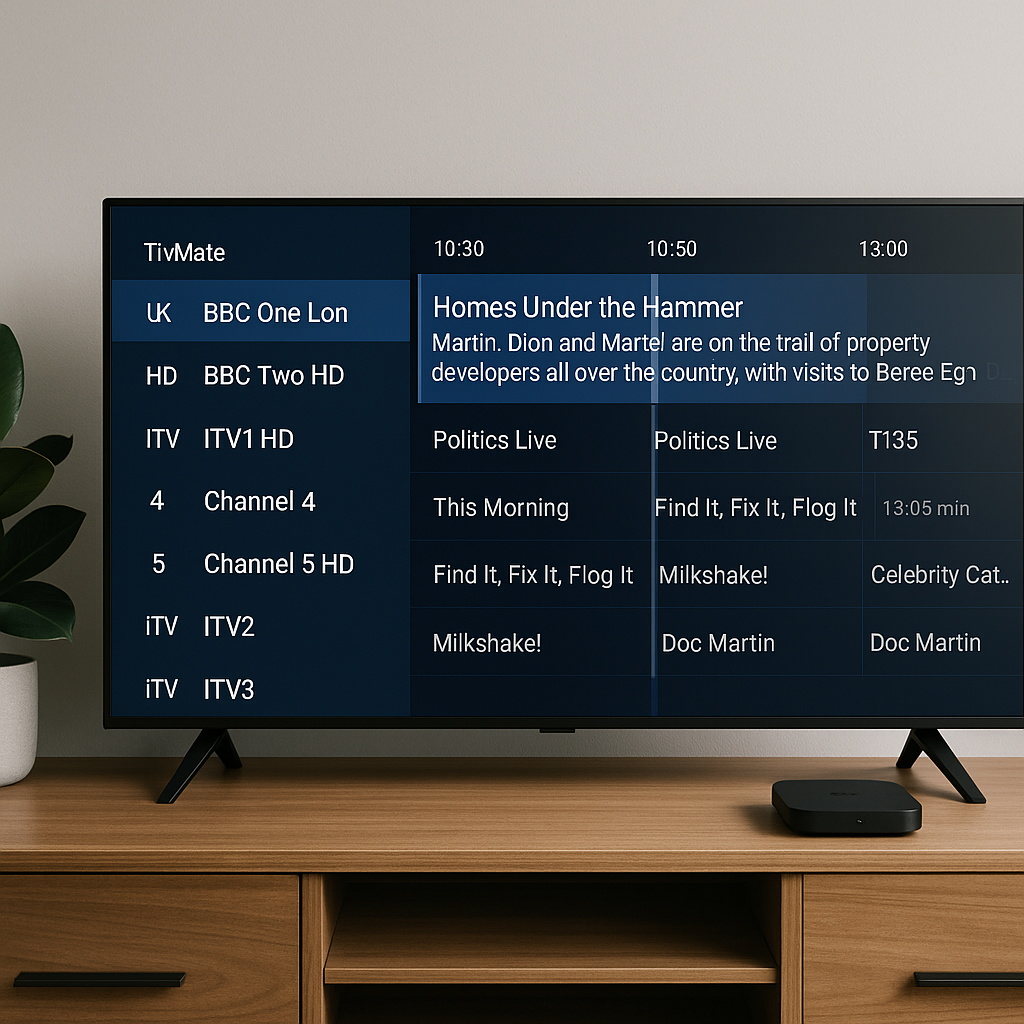
TiviMate Setup and Configuration Guide UK 2026 is for everyday UK viewers who want a smooth, organised way to watch IPTV on a Firestick, Android TV box or Google TV device, especially with a reliable service like Tiviprimes.
If you have ever opened an IPTV app and felt unsure where to add your login, how to fix the TV guide, or why some channels appear in the wrong order, you are not alone. A lot of viewers simply want their telly to work without needing to become a tech expert.
The good news is that TiviMate is one of the cleanest and most comfortable IPTV players available for Android-based TV devices. Once it is set up properly, it can feel much more like a traditional Sky, Freeview or cable TV guide.
This guide walks you through installation, playlist setup, EPG configuration, catch-up basics, favourite channels, playback settings and common mistakes. It is written for UK homes, UK broadband, UK devices and normal viewing habits, from BBC and ITV catch-up routines to weekend Premier League viewing.
Before we begin, remember that TiviMate is a player app. It does not provide channels by itself. You need an IPTV subscription from a provider, and you should always use services responsibly and in line with the terms of the content you watch.
What TiviMate Does for UK IPTV Viewers
TiviMate is an IPTV player designed mainly for Android TV and Fire TV devices. Think of it as the on-screen layout, remote-control interface and programme guide that helps you browse channels from your IPTV provider. It is not the actual TV service, in the same way that a Sky box interface is not the channel owner itself.
For many UK viewers, the appeal is simple: TiviMate makes IPTV feel familiar. Instead of tapping through awkward mobile-style menus, you get a proper TV guide, channel groups, favourites, logos, catch-up indicators and a much smoother living-room experience.
In most cases, TiviMate is best suited to people who watch on a television rather than on a phone. It works nicely with a remote, it looks good from the sofa, and it is particularly popular on Amazon Firestick, Fire TV Cube, Nvidia Shield, Chromecast with Google TV and Android TV boxes.
TiviMate can help you organise:
- Live TV channels by category
- Sports, films, kids and news groups
- Favourite UK and international channels
- Electronic programme guide listings
- Catch-up TV where your provider supports it
- Multiple playlists in one app
If you are completely new to the wider idea of internet TV, it is worth reading this helpful UK beginner guide to IPTV first. It explains the basics in plain English before you move into app setup.
Before You Start Your TiviMate Setup UK 2026
A calm, tidy setup begins before you even open the app. The most common problems happen because viewers rush in without the right login details, a stable internet connection or a suitable device. Spending five minutes checking the basics can save you an evening of frustration.
You will normally need details from your IPTV provider. With Tiviprimes, for example, your account information is supplied so you can add it to a compatible IPTV player such as TiviMate. Keep those details somewhere safe and private, because they are linked to your subscription.
Before installing TiviMate, check you have:
- A compatible Fire TV or Android TV device
- A working IPTV subscription
- Your playlist details or Xtream Codes login
- A stable home broadband connection
- Your TV remote with fresh batteries
- A few quiet minutes to follow the steps
Broadband matters more than many people realise. IPTV streaming uses your internet connection continuously, so weak Wi-Fi, overloaded routers and slow evening speeds can cause buffering. If you are unsure whether your setup is ready, use this IPTV requirements checklist for UK homes before blaming the app.
As a rough guide, one HD stream usually needs a steady connection rather than just a high headline speed. UK broadband from BT, Virgin Media, Sky Broadband, TalkTalk, Vodafone, Plusnet or EE can all work well, but the quality of Wi-Fi around the home is often just as important as the package name.
TiviMate vs IPTV Smarters Pro: Which Is Better?
TiviMate and IPTV Smarters Pro are two of the most popular IPTV player apps, but they suit slightly different viewing styles. Neither app is automatically better for everyone. The better choice depends on your device, how you like to watch, and whether you prefer simplicity or deeper customisation.
TiviMate is often the favourite for a main living-room TV. It has a polished guide, quick channel switching, strong favourites management and a layout that feels close to a premium set-top box. It is especially good if you spend a lot of time browsing live channels.
IPTV Smarters Pro, on the other hand, is popular because it is available on more platforms and can feel straightforward for users who watch live TV, films and series from one dashboard. If you are considering that route as well, our IPTV Smarters Pro setup guide for UK 2026 explains the process in detail.
Here is the simple comparison:
- TiviMate: best for Android TV and Firestick live TV viewing
- IPTV Smarters Pro: useful across more device types
- TiviMate: excellent TV guide and favourites experience
- IPTV Smarters Pro: simple layout for films and series
- TiviMate: Premium upgrade unlocks advanced features
- Both: require a separate IPTV subscription
A lot of viewers use both at different times. For example, they may prefer TiviMate on the main telly and another app on a tablet or backup device. The good news is that once you understand your playlist details, adding them to either app becomes much easier.
Best Devices for TiviMate in the UK
TiviMate is built for Android-based TV systems. That means it is not designed for iPhone, iPad, Apple TV, Samsung Tizen or LG webOS in the same direct way. Some people try workarounds, but for a smooth home setup, it is better to use a device that TiviMate properly supports.
Popular UK choices include the Amazon Firestick 4K, Firestick 4K Max, Fire TV Cube, Chromecast with Google TV, Nvidia Shield TV and many Android TV boxes. These devices plug into your TV by HDMI and let you install apps that are not available on traditional Freeview boxes.
If you are still choosing your hardware, this guide comparing Android box vs Firestick vs Smart TV for IPTV in the UK is a useful next read. It explains the strengths and weaknesses of each option in everyday language.
For most UK households, a Firestick is the easiest entry point because it is affordable, widely available from Amazon and Argos, and simple to connect. Android TV boxes can offer more power and storage, but quality varies, so it is wise to buy from a reputable seller.
When choosing a device, look for:
- Good Wi-Fi performance, ideally Wi-Fi 5 or Wi-Fi 6
- Enough storage space for apps and updates
- A responsive remote control
- Support for 1080p or 4K playback
- Regular software updates
- Reliable reviews from UK buyers
Try not to use very old devices for IPTV if you can avoid it. A first-generation Firestick or underpowered no-name box may technically install apps, but it can struggle with smooth playback, guide loading and app switching.
How to Install TiviMate on Firestick and Android TV
Installing TiviMate depends on the device you use. On many Android TV and Google TV devices, you can install it from the Google Play Store. On Firestick, it is usually installed by sideloading because the app may not appear directly in the Amazon Appstore.
Do not let the word sideloading put you off. It simply means installing an app from a safe source outside the built-in store. The process is common on Fire TV devices, but you should still be careful and only use trusted sources.
Before installing anything, make sure your Firestick or Android TV is connected to your home Wi-Fi, signed into your device account, and updated. A quick restart before setup can also clear small glitches.
Firestick Installation Steps for TiviMate
Firestick is one of the most common choices for Tiviprimes viewers in the UK. If you want a broader walkthrough of Fire TV preparation, see our Firestick IPTV installation guide for UK 2026. For TiviMate specifically, the process usually looks like this:
- From the Firestick home screen, open Find and search for Downloader.
- Install the Downloader app from the Amazon Appstore.
- Go to Settings, then My Fire TV, then Developer Options.
- Allow Downloader to install unknown apps. On some newer Firesticks, this is called Install unknown apps.
- Open Downloader and enter the official TiviMate download source or a trusted app store link.
- Download and install the TiviMate APK.
- Open TiviMate from your apps list and continue to playlist setup.
If Developer Options are hidden, go to Settings, then My Fire TV, then About, and click the device name several times until developer options are enabled. Amazon changes menu wording from time to time, so do not panic if your screen looks slightly different.
After installing, you can delete the APK file in Downloader to free up storage. Firesticks can fill up quickly, and low storage may cause sluggish performance later.
Android TV and Google TV Installation Steps
On Android TV devices, installation is usually simpler. Devices such as Nvidia Shield, Chromecast with Google TV and many Sony, Philips or TCL Android TVs can often use the Google Play Store directly.
- Open the Google Play Store on your Android TV device.
- Search for TiviMate IPTV Player.
- Select the app by the recognised TiviMate developer.
- Choose Install and wait for it to finish.
- Open the app from your home screen or apps menu.
- Allow any basic permissions requested by the app.
- Move on to adding your IPTV playlist.
If TiviMate is not available in your device store, you may need to sideload it in a similar way to Firestick. Again, only use trusted sources and avoid random download pages promising modified premium versions. They may be unsafe, unreliable or against the app rules.
Adding Your Tiviprimes Playlist to TiviMate
Once TiviMate is installed, the next step is adding your IPTV subscription details. This is the part that makes your channels appear. Without a playlist, TiviMate is just an empty player.
Your provider may offer login details in different formats. The two most common are Xtream Codes and M3U playlist URL. Both can work, but Xtream Codes is often easier for everyday users because it separates the server address, username and password into clear boxes.
Before typing anything, check your details carefully. IPTV logins can include capital letters, numbers and symbols. One small typing mistake can stop the playlist from loading. If possible, copy and paste the details using a phone app or remote-control keyboard feature.
When adding a playlist, keep these tips in mind:
- Use the exact server URL given by your provider
- Do not add extra spaces before or after text
- Check capital letters in usernames and passwords
- Make sure your subscription is active
- Restart the app after adding the playlist
- Contact support if the same details fail twice
Xtream Codes Login Method
The Xtream Codes method is usually the most user-friendly option in TiviMate. It allows the app to fetch your live channels, TV guide and sometimes catch-up information more neatly.
- Open TiviMate and choose Add playlist.
- Select Xtream Codes if the option is available.
- Enter the server address supplied by your IPTV provider.
- Enter your username exactly as provided.
- Enter your password exactly as provided.
- Choose Next and wait while TiviMate processes the playlist.
- Name the playlist, for example Tiviprimes, so it is easy to recognise.
If the playlist loads successfully, you should see channel groups appear. These might include UK Entertainment, Sports, Movies, Kids, News, Documentary, International and other categories depending on your subscription.
If it fails, do not keep entering random changes. First check your internet connection, then check the login details, then restart the device. In most cases, the problem is a tiny typo or an inactive subscription rather than a major technical fault.
M3U Playlist URL Method
The M3U method uses one long playlist link. It can work perfectly well, but it is less forgiving because the link is often lengthy and easy to mistype with a TV remote.
- Open TiviMate and choose Add playlist.
- Select M3U playlist.
- Enter the full playlist URL exactly as supplied.
- If your provider gives a separate EPG URL, save it for the guide setup stage.
- Choose Next and wait for channels to load.
- Give the playlist a clear name.
- Check a few channels before adjusting settings.
If you are using M3U, a Bluetooth keyboard or phone-based remote app can make typing much easier. Fire TV and Google TV both offer phone remote options, which can save a lot of time when entering long URLs.
Best TiviMate Configuration Settings UK 2026
This is where TiviMate starts to shine. The default setup is fine, but a few careful changes can make it feel much more personal and reliable. You do not need to change every setting. Focus on the ones that improve your day-to-day viewing.
Start with the TV guide, often called the EPG. The EPG is what shows programme names, times and descriptions, similar to Freeview, Sky or Virgin Media. If it is missing or incorrect, channel browsing becomes much harder.
For EPG setup, go to your playlist settings and look for the EPG source. If you used Xtream Codes, TiviMate may detect the guide automatically. If your provider gives a separate EPG URL, add it manually. After that, update the guide and allow a few minutes for listings to appear.
Good EPG habits include:
- Update the TV guide after adding a playlist
- Set automatic guide updates if available
- Allow enough time for large guides to load
- Check the correct time zone for the UK
- Refresh the guide if listings look blank
- Hide groups you never watch
Next, organise your channel groups. A lot of viewers never bother with this, but it makes a huge difference. If you mainly watch BBC, ITV, Channel 4, Sky Sports-style sports channels, films and kids channels, there is no need to scroll through every international category each night.
You can add favourite channels by long-pressing or opening the channel menu, depending on your remote. Create a favourites list for the channels you watch most often. This is especially helpful for family homes where everyone wants quick access to familiar channels.
Playback settings are also worth checking. TiviMate may let you adjust buffer size, audio track preferences, subtitle behaviour and external player options. In most cases, the built-in player is enough, so do not change to an external player unless you have a specific reason.
For UK households, a sensible configuration might include:
- Guide time zone set to United Kingdom or automatic
- Favourites list for everyday channels
- Sports channels grouped separately for match days
- Kids channels hidden or PIN-protected where needed
- Buffer size kept moderate, not extreme
- Automatic updates enabled for playlists and EPG
If you watch a lot of sport, especially busy fixtures and weekend matches, app setup is only part of the experience. Our guide to watching live football online in the UK in 2026 explains practical streaming habits that can help on match days, when networks and servers are often under heavier demand.
You may also want to think about data use. IPTV can use a fair amount of broadband data, especially if you watch HD or 4K for several hours a day. Most UK fibre packages are unlimited now, but mobile broadband and some smaller plans may have limits. This guide to how much internet data streaming TV uses in the UK explains what to expect.
Reducing Buffering and Improving Picture Quality
Buffering is the stop-start loading circle that nobody wants to see during a film, BBC drama, ITV match coverage or big Premier League moment. The good news is that buffering is often fixable, and it is not always caused by the IPTV service or the app.
Start with the basics. Restart your router, restart your streaming device, and test another app such as BBC iPlayer, YouTube or Netflix. If everything is struggling, your internet or Wi-Fi is probably the issue. If only one channel struggles, it may be a temporary stream problem.
Common buffering causes include:
- Weak Wi-Fi signal behind the TV
- Too many devices using broadband at once
- Old Firestick or low device storage
- Router placed in a cupboard or corner
- Evening congestion on your broadband line
- Using a distant or overloaded VPN server
For a better connection, place your router in the open and as close to the streaming device as practical. If your Firestick is hidden behind a wall-mounted TV, use the HDMI extender that came in the box. That tiny cable can improve Wi-Fi reception by moving the stick away from the hot, signal-blocking back of the television.
If possible, use Ethernet. Some Fire TV and Android TV devices support wired adapters. A cable is not always pretty, but it is often more stable than Wi-Fi, especially in larger UK homes with thick walls, loft extensions or garden rooms.
Router settings can also make a real difference. If you want to go deeper without getting too technical, read our plain-English guide to router settings that improve IPTV streaming quality in the UK. It covers Wi-Fi bands, channel congestion and practical home network tweaks.
If buffering continues, this dedicated article on why IPTV keeps buffering and UK fixes for 2026 is worth keeping handy. It separates device problems, broadband problems and service-side issues so you can troubleshoot calmly.
Within TiviMate itself, try modest changes rather than dramatic ones. Increase the buffer size slightly if your connection is uneven, but avoid maxing out every setting. A very large buffer can make channel switching slower and may not solve the real cause.
Common Mistakes to Avoid
Most TiviMate problems come from small setup mistakes. They are easy to make and usually easy to fix. If something feels wrong, do not assume you have broken anything. Work through the simple checks first.
The biggest mistake is expecting TiviMate to include channels on its own. It is only a player. You still need a subscription from a provider such as Tiviprimes and the correct login details. Installing TiviMate alone will not give you live TV.
Another common issue is mixing up app accounts and IPTV accounts. TiviMate Premium, if you choose to buy it, is an app upgrade. It is separate from your IPTV subscription. Paying for Premium unlocks TiviMate features, but it does not pay for channels.
Avoid these common mistakes:
- Entering the server URL with a missing character
- Confusing zero with the letter O
- Using old expired subscription details
- Installing unsafe modified app versions
- Ignoring low storage warnings on Firestick
- Changing too many settings at once
- Forgetting to update the EPG after setup
It is also sensible not to overload your device with too many apps. Firesticks and budget Android boxes can slow down when storage is nearly full. Remove unused apps, clear cache occasionally, and restart the device every so often.
Another mistake is assuming every issue is caused by the IPTV provider. Sometimes the problem is Wi-Fi, sometimes it is a particular channel source, sometimes it is the device, and sometimes it is a busy evening network. A calm step-by-step approach usually finds the answer faster than repeatedly reinstalling everything.
If you are still choosing a provider, take your time. Look for clear support, straightforward setup instructions, stable service and sensible expectations. Our IPTV buying guide for UK 2026 explains how to subscribe smartly and avoid rushed decisions.
Finally, remember that IPTV is part of a wider TV landscape. Some UK viewers use it alongside Freeview, BBC iPlayer, ITVX, Netflix, Prime Video or satellite. If you are weighing your options, this streaming vs satellite vs cable UK 2026 guide can help you decide what belongs in your home setup.
FAQ
Is TiviMate available on Samsung or LG Smart TVs?
In most cases, no. TiviMate is mainly for Android TV and Fire TV devices. Samsung and LG smart TVs use different app systems, so the easiest solution is usually to plug in a Firestick, Chromecast with Google TV or Android TV box.
Do I need TiviMate Premium for IPTV?
You can use TiviMate basic features without Premium, but many viewers prefer Premium because it unlocks useful extras such as multiple playlists, advanced favourites, better guide options and more customisation. It is separate from your IPTV subscription.
Why is my TiviMate TV guide blank?
A blank guide usually means the EPG has not loaded, the EPG source is missing, or the guide needs refreshing. Check your playlist settings, update the EPG manually, confirm the UK time zone, and allow a few minutes for listings to appear.
Can I use Tiviprimes with TiviMate on Firestick?
Yes, you can use Tiviprimes subscription details with a compatible IPTV player such as TiviMate on Firestick, provided you enter the correct login or playlist information. If you get stuck, check the details carefully and contact support for help.
What internet speed do I need for TiviMate in the UK?
For HD IPTV, a steady connection is more important than a flashy speed test. As a general rule, aim for at least 15 to 25 Mbps available to the device for comfortable HD viewing, and more for 4K or busy households with several people online.
Final Thoughts: TiviMate can make IPTV feel tidy, familiar and enjoyable when it is installed and configured properly. Take your time, use the correct playlist details, organise your favourites, keep your EPG updated and treat buffering as something to troubleshoot step by step. If you want a premium IPTV service for your UK home, Tiviprimes is ready to help you get set up with a smooth, reassuring viewing experience.