21 Aug
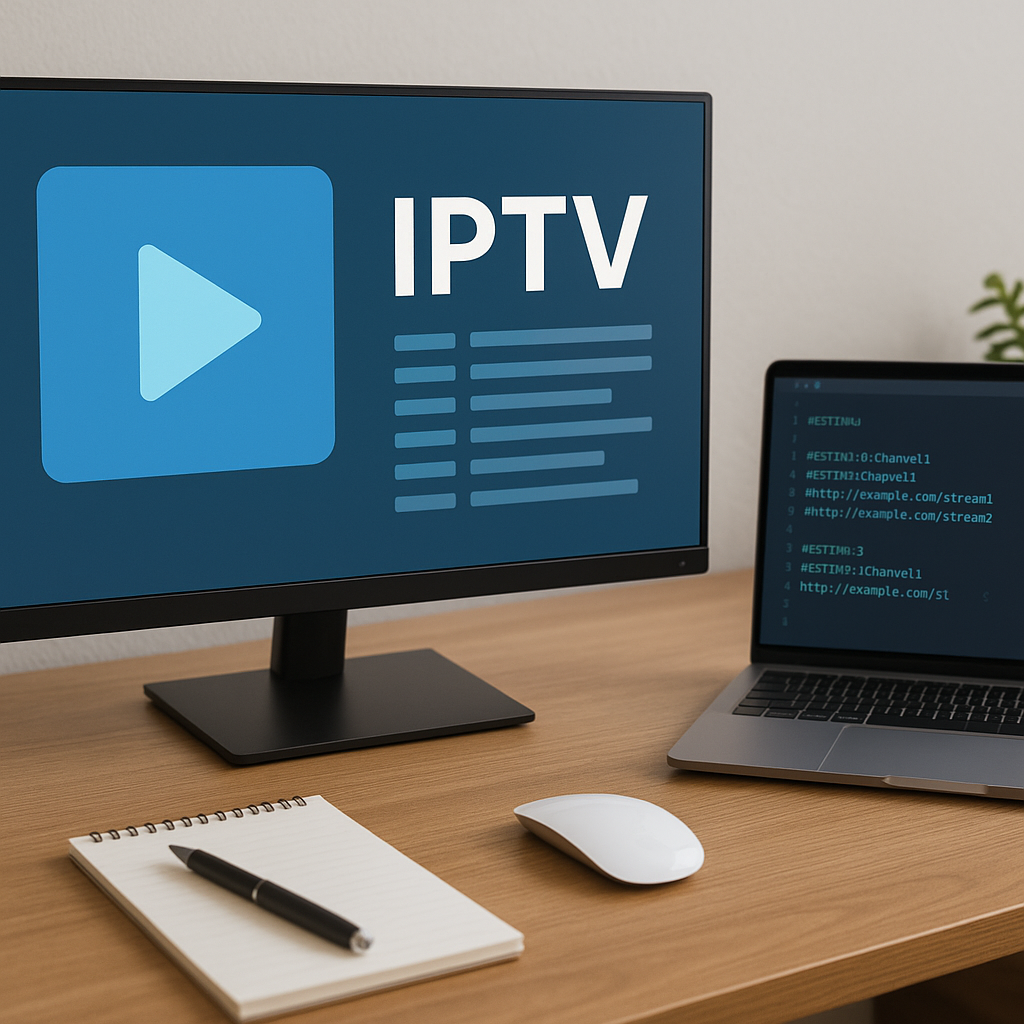
IPTV playlist is a phrase you will see often when setting up internet TV, but the good news is that it is much simpler than it sounds.
With Tiviprimes, a playlist is simply the organised list your IPTV app uses to show live channels, films, series, catch-up options and programme information on your telly, tablet or phone.
A lot of viewers in the UK are used to Freeview, Sky, Virgin Media, BBC iPlayer and ITVX, where everything is already laid out. IPTV works a little differently because your app usually needs playlist details before it can display what is available.
If you have ever been sent an M3U link, an M3U file, an EPG link or login details and wondered what to do next, you are in the right place. This guide explains it in plain English, without assuming you are technical.
By the end, you will understand what an IPTV playlist does, how M3U files work, why electronic programme guides matter, which devices are easiest in UK homes, and how to avoid the common mistakes that cause missing channels or buffering.
What Is an IPTV Playlist?
An IPTV playlist is the list of TV streams your IPTV app reads so it can show you channels and content. Think of it like a TV channel directory. On Freeview, the channel list is built into the system. With IPTV, the list often arrives as a playlist link or file that your player app loads over the internet.
In most cases, you do not need to open or edit the playlist yourself. You enter the details into an app such as TiviMate, IPTV Smarters Pro, Smart IPTV, XCIPTV or another compatible player, and the app turns the playlist into a friendly channel menu.
A playlist can include different types of content, depending on your subscription and app:
- Live UK and international TV channels
- Sports channels and event feeds
- Films and box sets on demand
- Series categories and episodes
- Radio or music channels
- Catch-up TV where supported
- Channel logos and grouping information
If you are completely new to internet TV, it may help to start with the bigger picture first. Our plain English guide to what IPTV means for UK viewers explains how IPTV differs from traditional aerial, satellite and cable services.
The key point is this: the playlist is not usually the app itself. It is the content list that the app uses. Your app is the player, your device is the screen or box, and your IPTV playlist is the organised source list that tells the player what to show.
M3U Files Made Simple for IPTV Playlist Users
M3U is one of the most common playlist formats used for IPTV. The name looks technical, but an M3U file is basically a simple text file containing stream links and labels. Your IPTV app reads that file and displays the channels in a neat, watchable way.
You may receive an M3U playlist in two common ways:
- A long web link that starts with http or https
- A file ending in .m3u or .m3u8
- A shortened link from your provider
- A QR code that points to the playlist
- Login details that generate the playlist inside the app
For everyday viewing, the link version is usually the easiest. You paste it into your IPTV player once, and the app can refresh the playlist when needed. A downloaded file can work too, but it is less convenient because it may not update automatically when channels change.
M3U and M3U8 are closely related. M3U8 is simply a version that uses UTF-8 text encoding, which is useful for special characters, accents and international channel names. For most viewers, there is no practical difference. If your app supports M3U, it will usually support M3U8 as well.
A lot of viewers worry that they need to understand coding to use M3U. You really do not. In the same way you do not need to understand how a Freeview signal is structured to watch BBC One, you do not need to read every line of an M3U file to enjoy IPTV.
What You Will See Inside an M3U IPTV Playlist
If you ever open an M3U file in a text editor, it may look like a jumble of lines. Do not panic. Each channel normally has a short information line followed by a stream link. The information line may include the channel name, logo address, group title and other details your player can use.
A typical playlist entry may include:
- The channel name shown in your app
- The group or category it belongs to
- A logo image link
- An internal channel ID
- The actual stream URL
- Sometimes catch-up information
The group title is what helps your app organise channels into sections such as UK Entertainment, Sports, Movies, Kids, News or Documentary. This is why a well-organised playlist feels much easier to browse than a messy one.
The stream URL is the part that actually points your app to the live video source. It should be treated like private account information. Do not post it publicly, share screenshots containing it, or send it to strangers online. If someone else uses your playlist details, it may affect your account or cause access problems.
Some apps let you reorder channels, hide categories or create favourites without changing the original playlist. This is ideal for family homes because you can keep the main playlist intact whilst making the app feel more personal. You might favourite BBC One, ITV1, Channel 4, Sky Sports News, a film channel and a kids section, so the daily channels are only a few clicks away.
IPTV Playlist vs Xtream Codes vs App Login
One of the most confusing parts of IPTV setup is that providers may offer different login methods. You might see M3U URL, Xtream Codes API, portal URL, username and password, or app login. They can all lead to the same content, but they work in slightly different ways.
Here is a simple comparison:
- M3U playlist: a playlist link or file that your app reads directly.
- Xtream Codes login: a server URL, username and password entered into a compatible app.
- Portal or MAC login: often used by MAG-style boxes and some dedicated IPTV devices.
- App account login: used when a branded app manages the connection for you.
M3U is widely supported and flexible. Xtream Codes style login can feel neater because many apps automatically separate live TV, films and series. Portal setups are more device-specific and are less common for viewers using Firestick or Android TV apps.
If you use TiviMate, for example, you can add a playlist and then link an EPG source for programme information. Our TiviMate setup and configuration guide walks through the app in more detail for UK households.
If you prefer IPTV Smarters Pro, the login screen may ask for a name, username, password and server URL. That can be easier than typing a very long M3U link with a remote control. You can see the full process in our IPTV Smarters Pro setup guide for the UK.
Which method is best? In most cases, use the method your provider recommends for your app. If both M3U and Xtream Codes are available, Xtream Codes can be tidier for on-demand content, whilst M3U remains excellent for straightforward live TV playlists.
How to Add an IPTV Playlist to Your App
The exact steps vary by app, but the general process is similar. Before you begin, make sure you have your playlist details ready and your device is connected to the internet. If you are using a Fire TV Stick, Android box, Smart TV or tablet, it is worth checking that the app is installed and updated first.
- Open your IPTV player app. This may be TiviMate, IPTV Smarters Pro, XCIPTV, OTT Navigator, Smart IPTV or another compatible player.
- Choose add playlist or add user. The wording depends on the app, but you are looking for the option to add your subscription details.
- Select M3U if asked. Some apps ask whether you want M3U URL, Xtream Codes or local file. Choose the method your provider supplied.
- Enter the playlist link carefully. Long URLs must be typed exactly. Watch for missing letters, extra spaces and confusion between zero and the letter O.
- Name the playlist. Use something simple, such as Tiviprimes, UK TV or Family TV, so you can recognise it later.
- Add the EPG link if supplied. This gives programme names, times and descriptions in the TV guide.
- Save and let the app load. The first scan may take a few minutes, especially if there are many categories.
The good news is that you usually only need to do this once. After setup, the app should load your channels automatically each time you open it. If your provider updates the playlist, many apps will refresh it on a schedule or when you reopen the app.
If you are setting up a Firestick, typing long links with the remote can be fiddly. Using the Fire TV mobile app as a keyboard often makes life easier. You can also follow our Firestick IPTV installation guide for a practical UK-focused walkthrough.
Before subscribing to any service, it is also sensible to check your home setup, broadband speed and device compatibility. Our IPTV requirements checklist covers the basics so you can avoid surprises later.
EPG, Channel Logos and Categories in an IPTV Playlist
An IPTV playlist gives your app the channel list, but an EPG gives it programme information. EPG stands for electronic programme guide. It is the grid that tells you what is on now, what is coming next, and sometimes programme descriptions.
Without an EPG, your channels may still play, but the guide may look empty. You might only see channel names, with no schedule. This is not always a fault with the playlist. It can simply mean the EPG link has not been added, has not finished loading, or does not match the channel IDs perfectly.
A good EPG helps with everyday viewing because it makes IPTV feel more like the telly experience you already know from Sky, Freeview or Virgin Media. You can browse tonight’s films, check match build-up before a Premier League game, or see when a BBC drama starts.
Common EPG and logo features include:
- Now and next programme listings
- Full TV guide grids
- Programme descriptions
- Channel logos beside names
- Category sorting by country or genre
- Catch-up markers where available
If logos are missing, channels can still work perfectly. Logos are cosmetic, but they do make browsing faster. If the guide is wrong by one hour, check your app time zone, device clock and daylight saving settings. UK viewers sometimes notice guide time issues around the March and October clock changes.
Some apps let you manually assign EPG entries to channels. This can be useful when a channel plays fine but the guide is blank. However, for most viewers, it is better to start with the playlist and EPG sources supplied by your provider rather than trying to build your own from scratch.
Best Devices for Using an IPTV Playlist in the UK
Your IPTV playlist can work on many devices, but the experience is not identical everywhere. A powerful device with a good app usually feels smoother, loads faster and handles larger playlists better. A very old Smart TV, on the other hand, may struggle with big channel lists or modern streams.
Popular UK device choices include:
- Amazon Fire TV Stick and Fire TV Cube
- Android TV boxes and Google TV devices
- Samsung and LG Smart TVs
- Android phones and tablets
- iPhone and iPad with compatible apps
- Windows laptops and mini PCs
Firestick devices are popular because they are affordable, widely available from Amazon UK, and work with many IPTV apps. Android TV boxes can offer more storage and flexibility, but quality varies a lot. Smart TV apps are convenient because there is no extra box, although app choice may be more limited.
If you are choosing between devices, our Android box vs Firestick vs Smart TV IPTV comparison explains the pros and cons in a way that is easy to relate to real UK living rooms.
For families, it is worth thinking about who will use the device. A simple remote, clear favourites list and reliable sleep mode can matter more than technical specifications. If grandparents or children will use it, choose the setup that feels easiest to navigate, not necessarily the one with the most features.
For sports fans, responsiveness matters. When watching live football online, a stable app and wired or strong Wi-Fi connection can make the difference between a smooth match and a frustrating evening. If football is your priority, you may also find our guide to watching live football online in the UK helpful.
Broadband, Data and Router Tips for IPTV Playlists
Your IPTV playlist is only the directory. The actual viewing experience depends heavily on your broadband, Wi-Fi and router. A perfectly good playlist can appear unreliable if the home network is struggling, especially during peak evening hours when everyone is streaming, gaming or scrolling.
For UK homes, providers such as BT, Sky Broadband, Virgin Media, TalkTalk, Plusnet, Vodafone, EE and Community Fibre can all be suitable, provided the connection is stable. Speed matters, but stability matters more. A steady 40 Mbps connection may perform better than a faster connection that keeps dropping.
As a rough guide for one stream:
- SD viewing may need around 3 to 5 Mbps
- HD viewing may need around 8 to 12 Mbps
- Full HD sports may benefit from 15 Mbps or more
- 4K viewing may need 25 Mbps or more
- Extra devices in the home need extra headroom
Streaming also uses data. If you have unlimited home broadband, this is usually not a worry. If you are using mobile broadband, tethering or a capped plan, it matters more. Our guide to how much internet data streaming TV uses gives clear examples for UK viewers.
Router placement can make a big difference. Keep your router out in the open, away from thick walls, microwaves, baby monitors and metal cabinets. If your IPTV device is near the router, an Ethernet cable is often the most reliable option. If you cannot use Ethernet, try the 5 GHz Wi-Fi band for nearby devices and 2.4 GHz for longer range.
For more advanced but still practical help, our guide to router settings that improve IPTV streaming quality covers ideas such as channel selection, QoS, DNS and avoiding crowded Wi-Fi bands.
Keeping Your IPTV Playlist Safe, Legal and Private
An IPTV playlist can contain private access details, so treat it like a password. Do not paste it into public forums, social media comments or unknown websites that claim to test playlists. If a link contains your username and password, anyone with that link may be able to use your account.
It is also important to use IPTV responsibly. In the UK, viewers should choose legitimate services and understand what they are paying for. Be wary of offers that sound too good to be true, especially if they promise every premium channel, every pay-per-view event and every sports package for almost nothing. That can be a warning sign.
Before buying, consider:
- Whether the provider is clear about support
- Whether the service works with your chosen app
- Whether payment details are handled sensibly
- Whether the trial or plan terms are clear
- Whether the provider explains setup honestly
- Whether you can get help if something goes wrong
A good IPTV experience is not just about having a long channel list. It is about reliability, helpful support, sensible setup instructions and a service that fits your viewing habits. If you are deciding what to look for, our IPTV buying guide for UK subscribers explains how to subscribe smartly and avoid common traps.
Privacy also includes your home network. Keep your Wi-Fi password strong, update your streaming apps, and avoid installing unknown APK files from random websites. If an app asks for unnecessary permissions, think carefully before allowing them.
Common Mistakes to Avoid with an IPTV Playlist
Most playlist problems come from small, fixable mistakes. The good news is that once you know what to look for, setup becomes far less stressful. A lot of viewers assume the whole service is broken when the issue is simply a typo, old app version or missing EPG link.
Try to avoid these common mistakes:
- Typing the M3U URL incorrectly. One missing character can stop the playlist loading.
- Adding spaces before or after links. Some apps treat spaces as part of the URL.
- Using the wrong login method. M3U details will not always work in an Xtream Codes screen.
- Forgetting the EPG link. Channels may play but the guide will be empty.
- Ignoring app updates. Old versions can struggle with newer streams.
- Using weak Wi-Fi. Buffering is often a network issue, not a playlist issue.
- Sharing playlist details. This can create account conflicts and privacy risks.
Another mistake is installing several IPTV apps at once and changing settings randomly. It is usually better to set up one good app properly, test it calmly, and only then decide whether you need an alternative.
Do not judge a playlist during a temporary broadband problem either. If Netflix, BBC iPlayer or YouTube are also slow, your IPTV app may not be the cause. Check your connection first, restart your router if needed, and test again.
Finally, avoid deleting your working playlist before saving the details somewhere safe. If you need to reinstall the app, reset a Firestick or replace a TV, you will need those details again.
Troubleshooting an IPTV Playlist That Will Not Load
If your playlist will not load, take a calm step-by-step approach. Most issues can be narrowed down quickly. Start with the simple checks before changing advanced settings.
- Check your internet connection. Open another streaming app such as BBC iPlayer or YouTube and confirm it plays normally.
- Restart the IPTV app. Close it fully, reopen it, and refresh the playlist if the app offers that option.
- Restart your device. Firesticks, Android boxes and Smart TVs can behave oddly after being left on for days.
- Check the playlist link. Make sure there are no typing errors, missing symbols or extra spaces.
- Confirm the subscription is active. Expired accounts may show loading errors or empty categories.
- Try another app if advised. Some apps handle large playlists better than others.
- Contact support with details. Mention your device, app, broadband provider and the exact error message.
If channels load but buffer, freeze or stop after a few seconds, the issue may be different from a playlist loading problem. Buffering can involve broadband congestion, Wi-Fi interference, device memory, app settings or server routing. Our dedicated guide on why IPTV keeps buffering and UK fixes covers that in more depth.
If only the EPG is missing, refresh the guide separately. Many apps have a clear EPG update option in settings. Also check whether the EPG source is assigned to the playlist. In apps with multiple playlists, it is possible to add the guide but not link it to the correct channel list.
If only some channels fail, do not assume your whole setup is wrong. Individual streams can change, categories can be updated, and temporary maintenance can happen. Refreshing the playlist or waiting a little while may solve it.
It is also worth comparing IPTV with your other TV options realistically. Streaming is flexible, but satellite and cable can behave differently during internet problems. Our streaming vs satellite vs cable UK guide explains the trade-offs clearly.
Final Thoughts
An IPTV playlist may sound technical at first, but in everyday terms it is simply the channel and content list your app uses to organise your viewing. M3U files are one common way of delivering that list, and you do not need to be a tech expert to use them. In most cases, you add the playlist link, add the EPG if supplied, choose your favourites, and enjoy a more flexible way to watch telly. The best results come from a reliable provider, a suitable device, a steady broadband connection and a calm setup process. If you want friendly support and a premium IPTV experience built with UK viewers in mind, Tiviprimes is here to help you get comfortable with your playlist and make the most of your viewing.
FAQ
What is an IPTV playlist in simple terms?
An IPTV playlist is the list of channels and content that your IPTV app reads. It tells the app what to show, how to group channels, and sometimes where to find logos or catch-up streams. You can think of it as the TV guide source behind your IPTV player.
Is an M3U file the same as an IPTV subscription?
No. An M3U file or link is usually one way of accessing the channel list included with a subscription. The subscription is the service account. The M3U playlist is the format your app uses to load the channels connected to that account.
Why does my IPTV playlist load but the TV guide is blank?
This usually means the playlist has loaded but the EPG has not. You may need to add the EPG URL, refresh the guide, check the app time zone, or confirm that the EPG source is correctly assigned to the playlist. Channels can still play even when the guide is empty.
Can I use the same IPTV playlist on more than one device?
That depends on your provider and plan. Some subscriptions allow only one connection at a time, whilst others allow multiple devices or connections. Always check before using the same playlist on several screens, because too many active connections may cause errors.
Do I need to edit my M3U playlist myself?
In most cases, no. Your IPTV app should read the playlist automatically. You can usually hide categories, create favourites and organise channels inside the app without editing the original M3U file. If something looks wrong, it is safer to ask support before changing the playlist manually.